RS-1_instruction manual.pdf - 第255页
Part 1 B asic O peration Chapter 2 Pr oduction 2- 144 Correcti ve ac tion to be taken if a nozz le is recognized to be longer than it i s An error indi cating that a nozzle is recog ni zed t o be longer t han it is occur…
Part 1 Basic Operation Chapter 2 Production
2-143
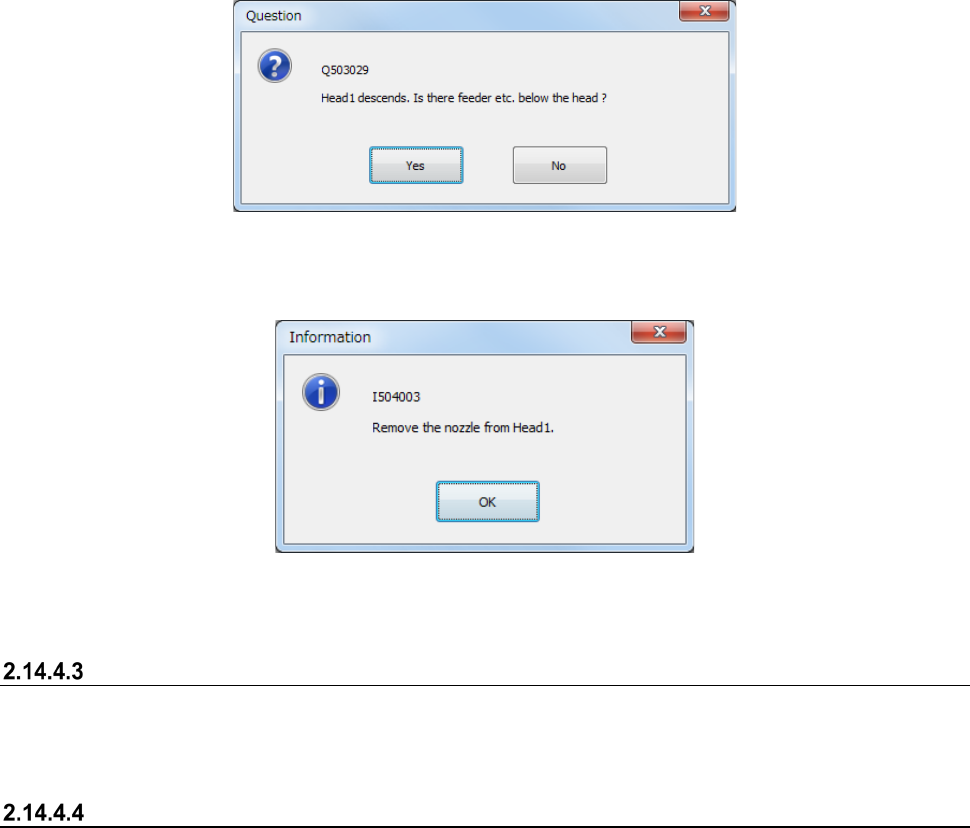
The system displays the “Question” message for asking you whether a feeder or any other device is
located under the head or not in order to move down the Z-axis after the head and the nozzle move
to the nozzle detachment position.
After the Z-axis moves down, the message for asking you to remove the nozzle appears on the
screen.
If there are two or more nozzles that cause a nozzle attachment error, the system repeats
performing this process.
Press the <OK> button, and then perform the same process for other head(s) that cause(s) a nozzle
attachment error. When the system finishes returning nozzles of all heads, the Z-axis moves up,
and then moves to the waiting position.
Automatically returning a nozzle
When you select the <Auto> button, and then press the <START> switch, the system automatically
returns a nozzle that causes a nozzle return error.
After the system returns nozzles of all heads, it moves up the Z-axis and then to the waiting position.
Operation after a nozzle is returned
If you return a nozzle after production is terminated abnormally, the system is put into the
Production Idle state.
If the system detects a nozzle attachment error at start of production, it starts production after
returning the nozzle.
Part 1 Basic Operation Chapter 2 Production
2-144
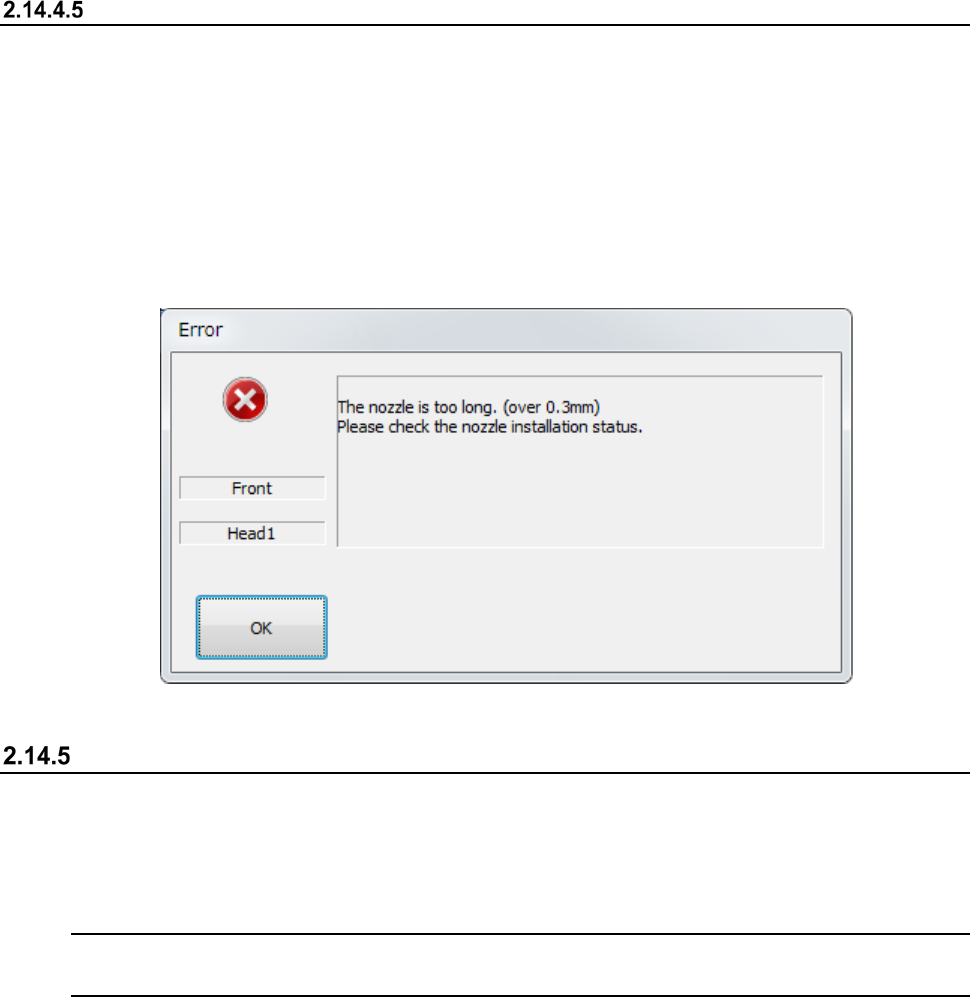
Corrective action to be taken if a nozzle is recognized to be longer than it is
An error indicating that a nozzle is recognized to be longer than it is occurs is supposed to be
caused due to an engagement failure of the Z-axis shaft and the nozzle.
Check the nozzle mounting condition. If it is stained or scratched, polish the nozzle mounting part.
See Section 3.1.11 “Nozzle” for how to check the nozzle mounting condition or polish the nozzle
mounting part.
After polishing the nozzle mounting part, allocate the nozzle.
See section 8.3.2.3 “Nozzle setup” for details of nozzle allocation.
Get and Save Machine Data
When you select the [Get and Save Machine Data] command from the “Arrange” pull-down menu
invoked from the main menu, the message appears on the screen that asks you whether to obtain
and save the machine information.
This function collects machine information files, compresses the collected machine information files,
and saves it into a desired folder when the system is put into the Production Idle state.
Note: Use this function only if our service personnel or your dealer tells you to do so.
Handle the obtained file as instructed too.
How to operate the function
* Before executing this function, obtain and save the machine information on the “Production”
screen.
Part 1 Basic Operation Chapter 2 Production
2-145
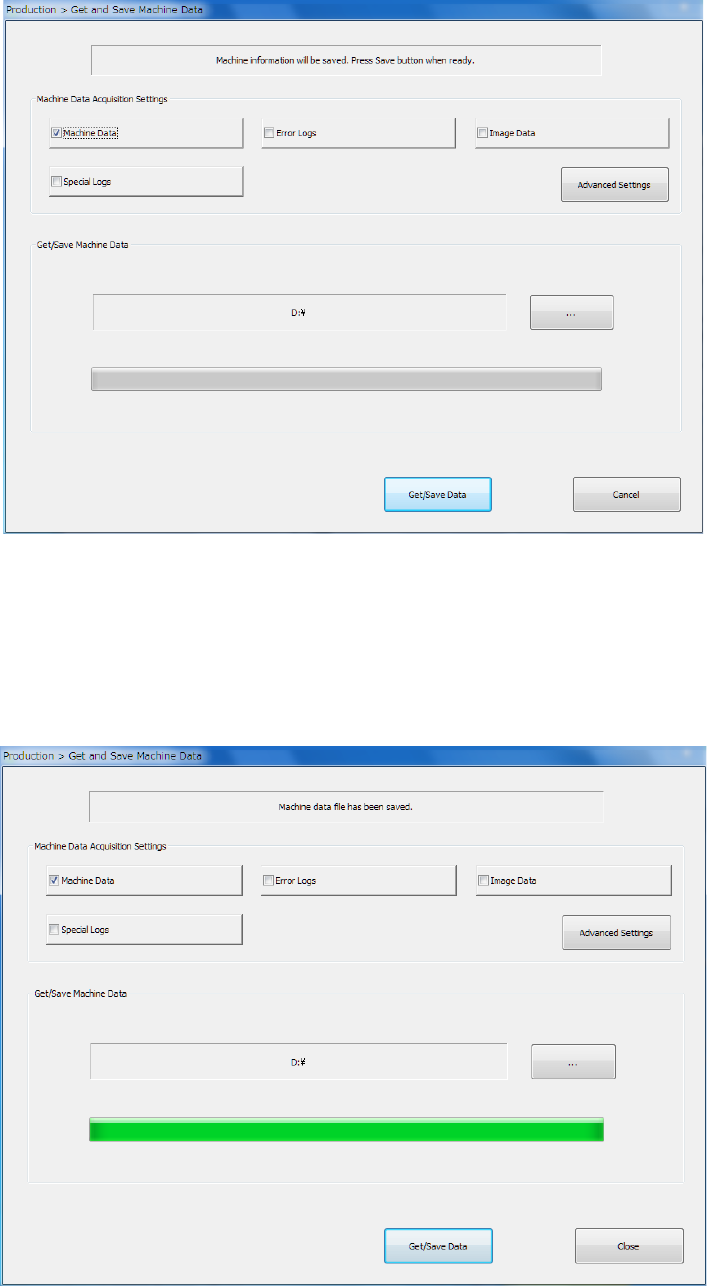
① Select the “Arrange” command from the menu, and then the [Get and Save Machine Data]
command from the “Arrange” menu.
② Press the <…> button to specify where to save the file.
③ When you click the <Get/Save Data> button, the system gets appropriate machine information
files, compresses the obtained files, and saves it.
④ When the machine information files have been obtained and compressed successfully, the
screen display is changed as follows.
To close this screen, press the <Close> button.
See Section 1.9.6 “Get and Save Machine Data” for details.