RS-1_instruction manual.pdf - 第236页
Part 1 B asic O peration Chapter 2 Pr oduction 2- 125 The system r eturns a co mpone nt to its orig inal positi on. 2) Th row awa y eve ry ti me The system di scards a compone nt accordin g to the setting of the men u it…
Part 1 Basic Operation Chapter 2 Production
2-124
system starts picking up components from one whose data was entered first of all.
(4) Changing the coordinates of a component pick-up position
If the system cannot pick up a component normally, change the coordinates of a component
pick-up position by entering them manually or teaching them.
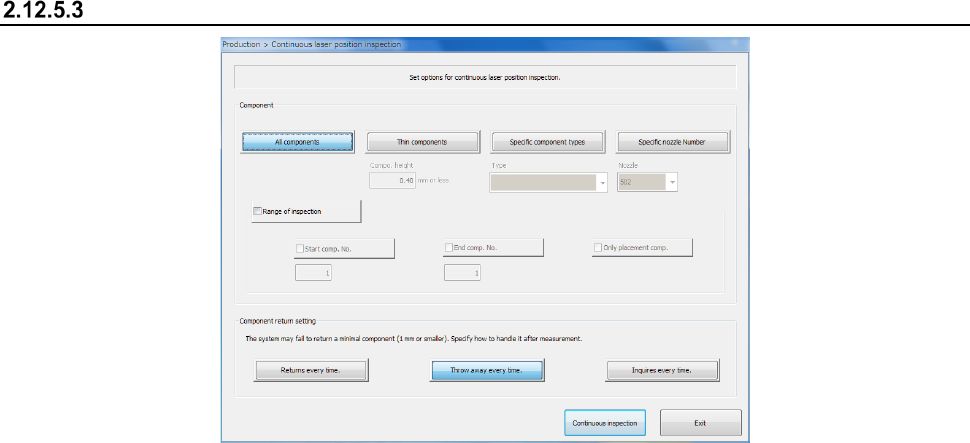
Continuous laser position inspection
(1) Component
Select one of the following buttons if you want to inspect only components that satisfy the
certain requirement(s).
1) All components
When you check this radio button, the system checks all components whose data is
specified in Component data.
2) Thin components
The system inspects only components whose height is lower than or equal to the value
set in the edit box.
3) Specific component types
The system inspects only components whose type is selected in the combo box.
4) Specific nozzle Number
The system inspects only components that use the nozzle selected in the combo box.
(2) Range of inspection
Check this check box if you want to check the components whose numbers are specified here
among components that satisfy the requirement(s) specified in the “Components” column.
When you check this check box, you can specify the following items.
1) Start comp. No.
Check this check box if you want to specify the component number of the first
component to be checked. After checking this check box, change the first component
number displayed in the edit box.
2) End comp. No.
Check this check box if you want to specify the component number of the last
component to be checked. After checking this check box, change the last component
number displayed in the edit box.
3) Only placement comp.
Check this check box if you want to check only components whose data is stored in
Placement data also.
(3) Component return setting
The screen that allows you to select how an inspected component is to be handled appears.
1) Returns every time
Part 1 Basic Operation Chapter 2 Production
2-125
The system returns a component to its original position.
2) Throw away every time
The system discards a component according to the setting of the menu item “Comp
reject to.”
3) Inquiries every time
The system displays the “Question” screen every time it finishes inspecting one
component.
(4) <Continuous Inspection> button (or the <START> switch)
The system starts checking the laser position of components continuously.
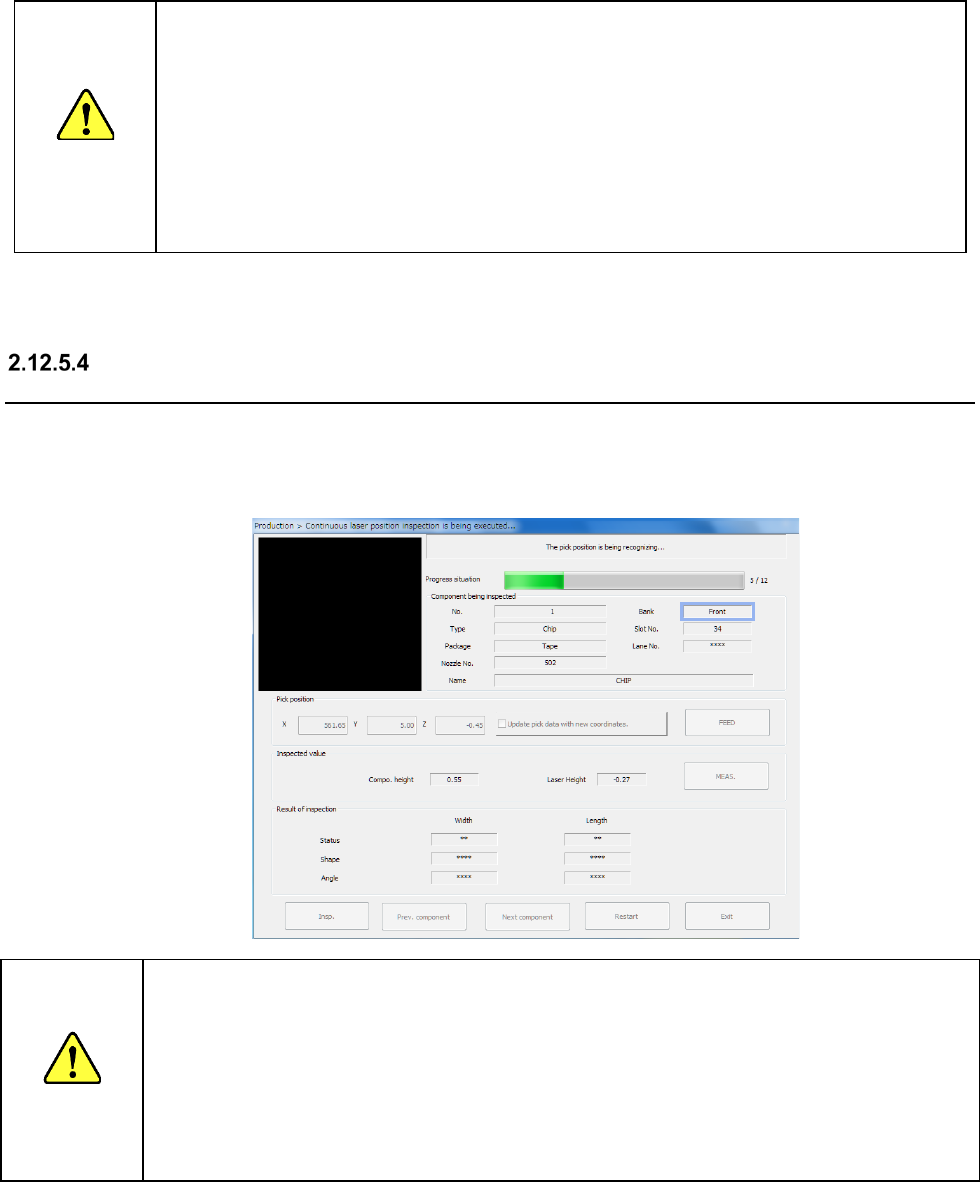
CAUTION
Immediately after you press the <Continuous inspection> button, the head starts moving and the
system starts a check.
To avoid injuries, do not put your hands inside the machine or keep your face or head away from
the machine.
Before pressing the <Continuous inspection> button, check to see if there is no one who is working
the internal parts of the machine.
Before pressing the <Continuous inspection> button, check to see if there is no one who is near
the machine and may be injured.
Before pressing the <Continuous inspection> button, check to see if there is no obstacle such as
an adjustment tool that is located or attached inside the machine and may prevent the machine
from operating normally.
(5) Exit
When you press this button, you can go back to the previous screen.
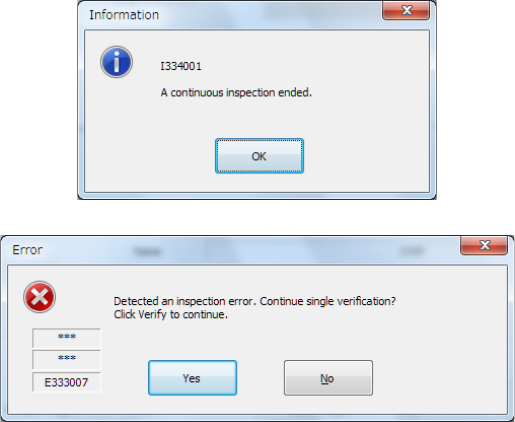
“Continuous laser position inspection being executed” screen (“Laser position
inspection”)
While the system is inspecting the laser position continuously, it displays data on the component
being inspected, its pick-up position and laser position as well as what is being processed.
If the laser check detects an error, you can perform the laser position inspection function or laser
position measurement function on this screen.
CAUTION
Immediately after you press the <Insp.> button, the head starts moving and the system starts
inspection.
To avoid injuries, do not put your hands inside the machine or keep your face or head away from the
machine.
Before pressing the < Insp.> button, check to see if there is no one who is working the internal parts of
the machine.
Before pressing the < Insp.> button, check to see if there is no one who is near the machine and may
be injured.
Before pressing the < Insp.> button, check to see if there is no obstacle such as an adjustment tool
that is located or attached inside the machine and may prevent the machine from operating normally.
Part 1 Basic Operation Chapter 2 Production
2-126
(1) Progress situation
This progress bar indicates how far the check has progressed.
When the system finishes continuous inspection, it outputs the following message, and then
returns to the previous screen (“Continuous laser position inspection” screen).
If an error occurs during continuous inspection, the following message is output.
To inspect the next component, press the <Yes> button. The system restarts continuous
inspection.
To inspect a component that caused an error separately, press the <Yes> button.
You can inspect only a component that caused the inspection error.
(2) Component (to be inspected)
The component number (“No.”), the component type (“Type”), the packaging style
(“Package”), the nozzle number (“Nozzle No.”), the component name (“Name”), the bank
(“Bank”), the attachment hole (“Slot No.”) and the lane (“Lane No.”) are displayed here.
(3) Pickup position
The coordinates of a component pick-up position are displayed here.
(4) Inspected value
The laser height and component height to be checked are shown here.
• <Meas.> button
This button allows you to measure the laser position.
(See the next section for the laser position.)
(5) Result of inspection
After inspection, the result value appears in the “Result of inspection” column.
1) Status
OK : he centering operation is done successfully.
Number : the system failed to center a component (each number indicates a code
number of the laser status).
2) Width, Length
The size of a component that was centered successfully appears here.
3) Angle
The angle of the component obtained when it is centered appears here.