RS-1_instruction manual.pdf - 第514页
Part 1 B asic O peration Chapter 4 Cr eating a Produc tion Progra m 4- 179 3) T eachin g Point Point Overview POINT1 The coordinat es to be taught are those of the current position. POINT2 The coordinat es to be taught a…
Part 1 Basic Operation Chapter 4 Creating a Production Program
4-178
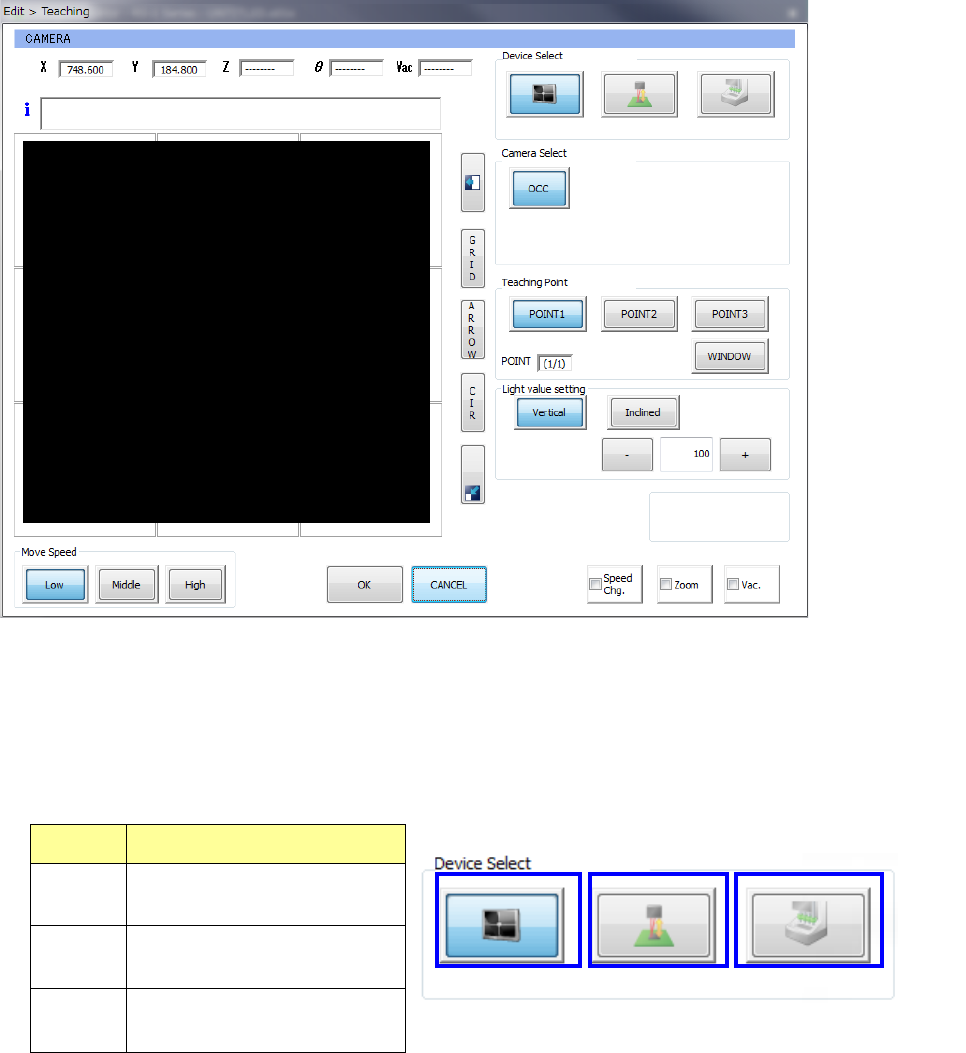
(1) Teaching with a camera
1) Device Select
To switch a device used to perform teaching to another one, press the corresponding device
icon button.
When you specify a teaching device to be used, the specified teaching device moves to the
coordinates displayed at the present.
No. Teaching device
1 Camera
2 HMS
3 Head device
2) Camera Select
Specify a camera to be used for a teaching operation.
③
①
②
Part 1 Basic Operation Chapter 4 Creating a Production Program
4-179
3) Teaching Point
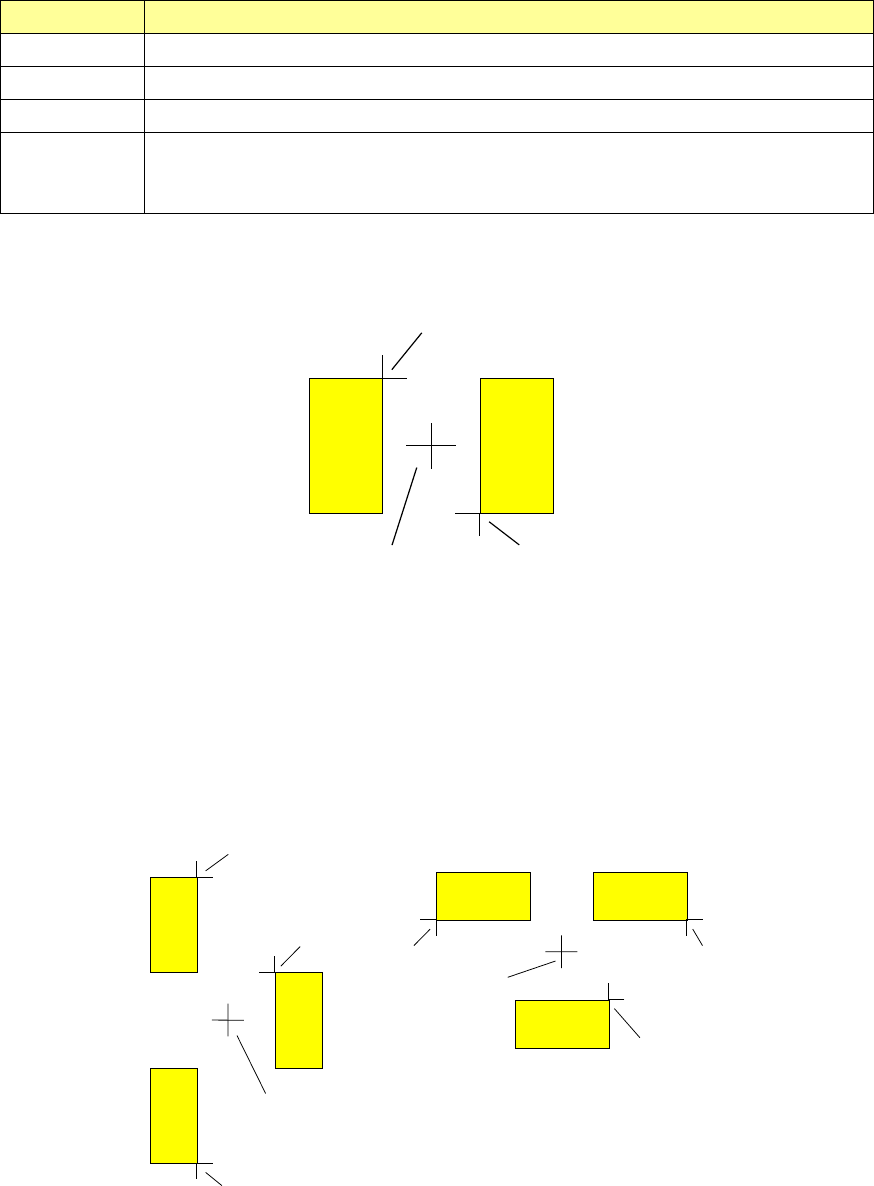
Point Overview
POINT1 The coordinates to be taught are those of the current position.
POINT2 The coordinates to be taught are those of a point midway between two teaching points.
POINT3 The coordinates to be taught are those of a point midway among three teaching points.
WINDOW
The coordinates to be taught are those of the center of the cursor that was used to teach
the coordinates of the upper left corner and those of the lower right corner of the window
cursor.
① How to teach the “POINT2” or “POINT3”
a) How to teach coordinates with POINT2
A
BC
Enter the two points, A and B in the figure above, and determine the middle point (point C) of
these two points A and B to handle the coordinates of the point C as the taught coordinates.
b) How to teach coordinates with POINT3
Enter three points A, B and C, and handle the coordinates of a point D as the taught
coordinates.
(The X coordinate of the point D should be the midpoint between the point A or B and the
point C, and the Y coordinate should be the midpoint between the points A and B.)
B
A
C
D
C
B
A
D1
Pad of a PWB
Part 1 Basic Operation Chapter 4 Creating a Production Program
4-180
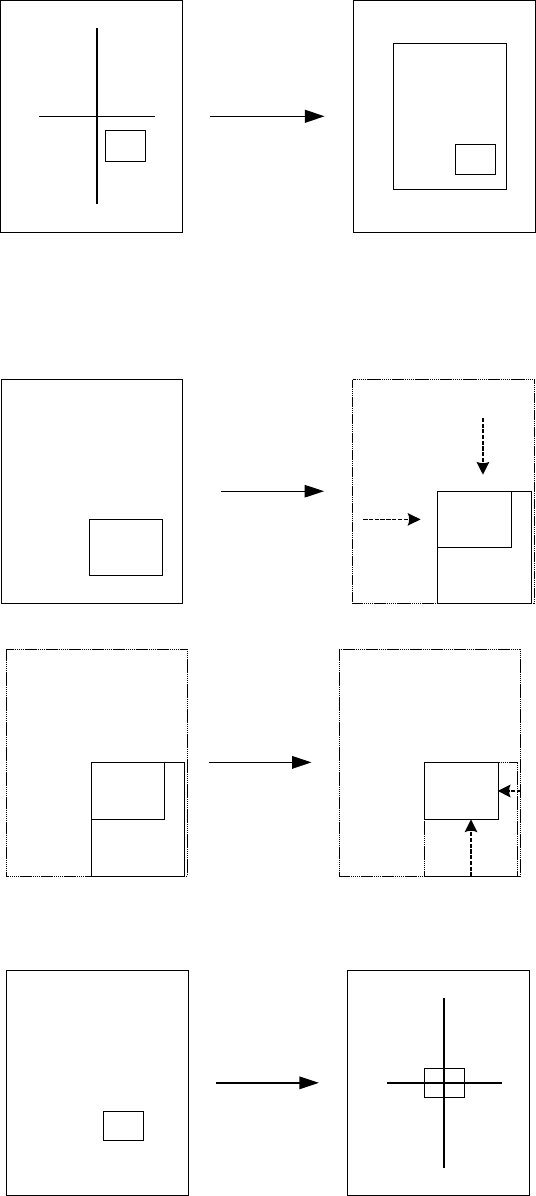
② Teaching with WINDOW
When you obtain the coordinates with the box window, select the <WINDOW> button.
The cross hair cursor is switched to the window cursor.
Normally, the crosshair cursor is displayed. Window cursor
Move the top side, left side, bottom side and right side of the window frame with the axis
drive keys for the X- and Y-axes. First of all, move the top side and the left side, and press
the <OK> button.
Next, move the bottom side and the right side, and press the <OK> button.
When you press the <OK> button after moving the bottom side and right side, the camera
moves so that the center of the box window can be aligned with that of the previous
crosshair cursor, and then, the cursor changes from the box window to the crosshair cursor.
The coordinates of the current position to which the camera moved are displayed in the “X”
and “Y” text boxes.
When you press the <OK> button at this point, the coordinate values are obtained.
Select the
<WINDOW>
button.