RS-1_instruction manual.pdf - 第131页
Part 1 B asic O peration Chapter 2 Pr oduction 2- 20 2.6 Fi le Op er atio ns Y ou have to op en a produ ction pro gram file to pr oduce PWBs. Y ou can save dat a that you changed o n the “Produc tion” screen or prod ucti…
Part 1 Basic Operation Chapter 2 Production
2-19
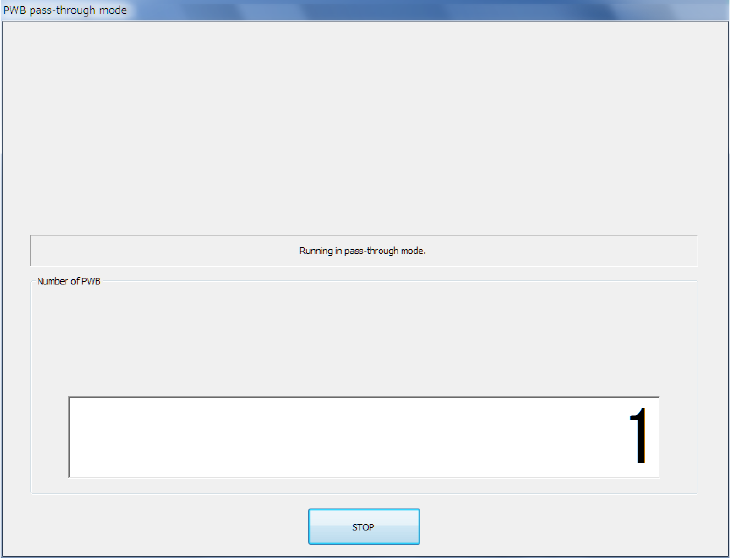
- Pass-through mode
When you click the <STOP> button, the Pass-Through mode is terminated, and the current screen
is switched to the Pass-Through mode start screen. In this case, if you start Pass-Through mode
again, the number of PWBs that have passed through is accumulated.
Part 1 Basic Operation Chapter 2 Production
2-20
2.6 File Operations
You have to open a production program file to produce PWBs.
You can save data that you changed on the “Production” screen or production management
information also.
Opening a file (to load a file)
This function loads a production program file already created into the system.
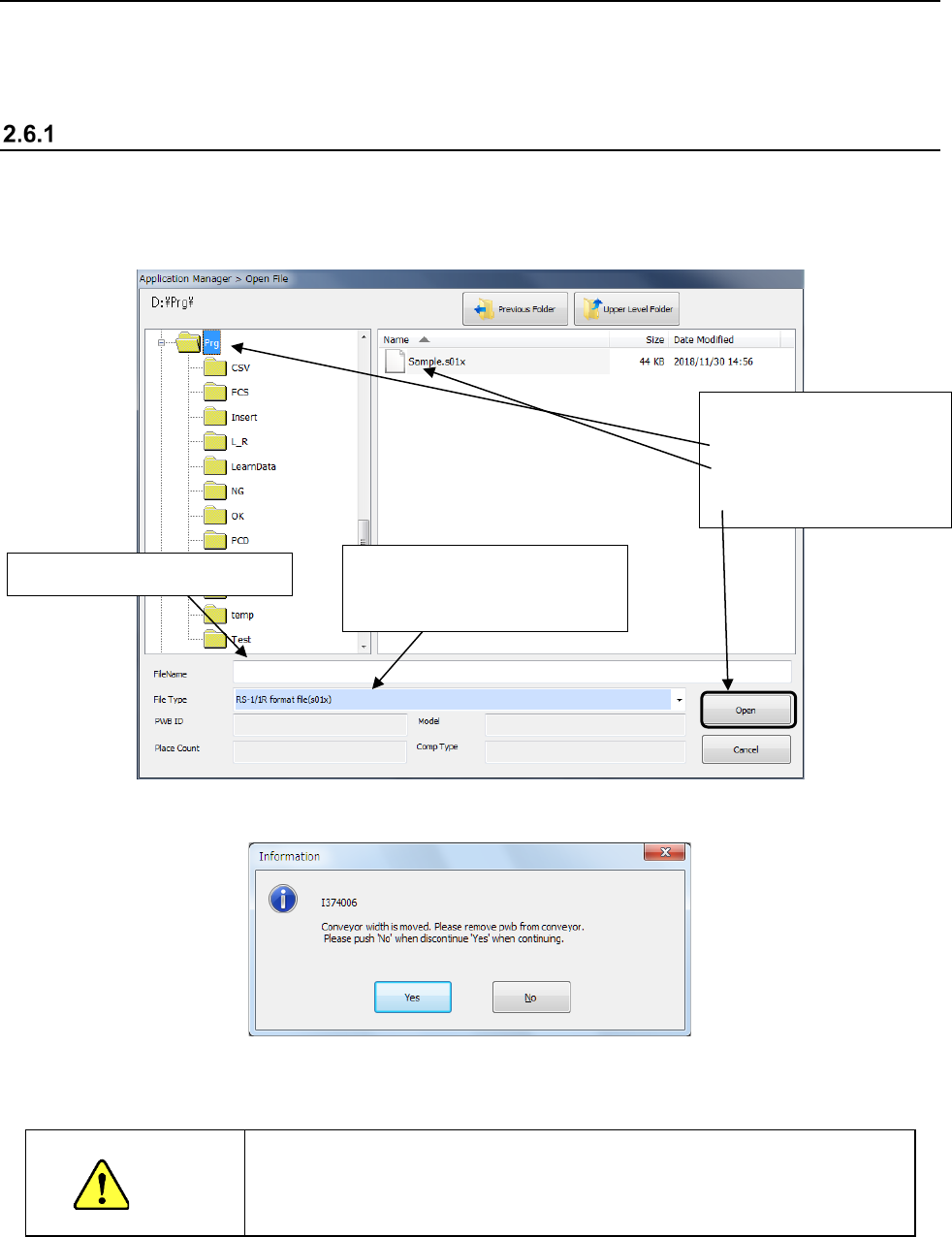
When you click the “File” button on the menu, then the [Open] command, the following dialog box
appears on the screen.
Select the desired file, and click the <Open> button. The selected file is loaded into the system.
Next, the following message appears on the screen.
When you click the <Yes> button, the “Automatic conveyor width adjustment” screen appears.
CAUTION
When you select the <Move> button on the “Automatic conveyor width
adjustment” screen, the conveyor starts operating. Be sure to check
to see if there is no substance on the conveyor movable section before
selecting this button.
* See Section 2.12.1.2 “Automatic PWB width adjustment” for details of an automatic PWB
width adjustment device.
<Procedure>
① Select a folder.
② Select a file.
③ Click the <Open> button.
The selected file name appears here.
To open a file created with another
machine, specify the model name
(file format) here.
Part 1 Basic Operation Chapter 2 Production
2-21
Saving a file
This function saves production program and Management Information by overwriting it.
Click the “File” button on the menu, and then the [Save] command.
The program is saved.
CAUTION
When you save a production program, the original contents are erased.
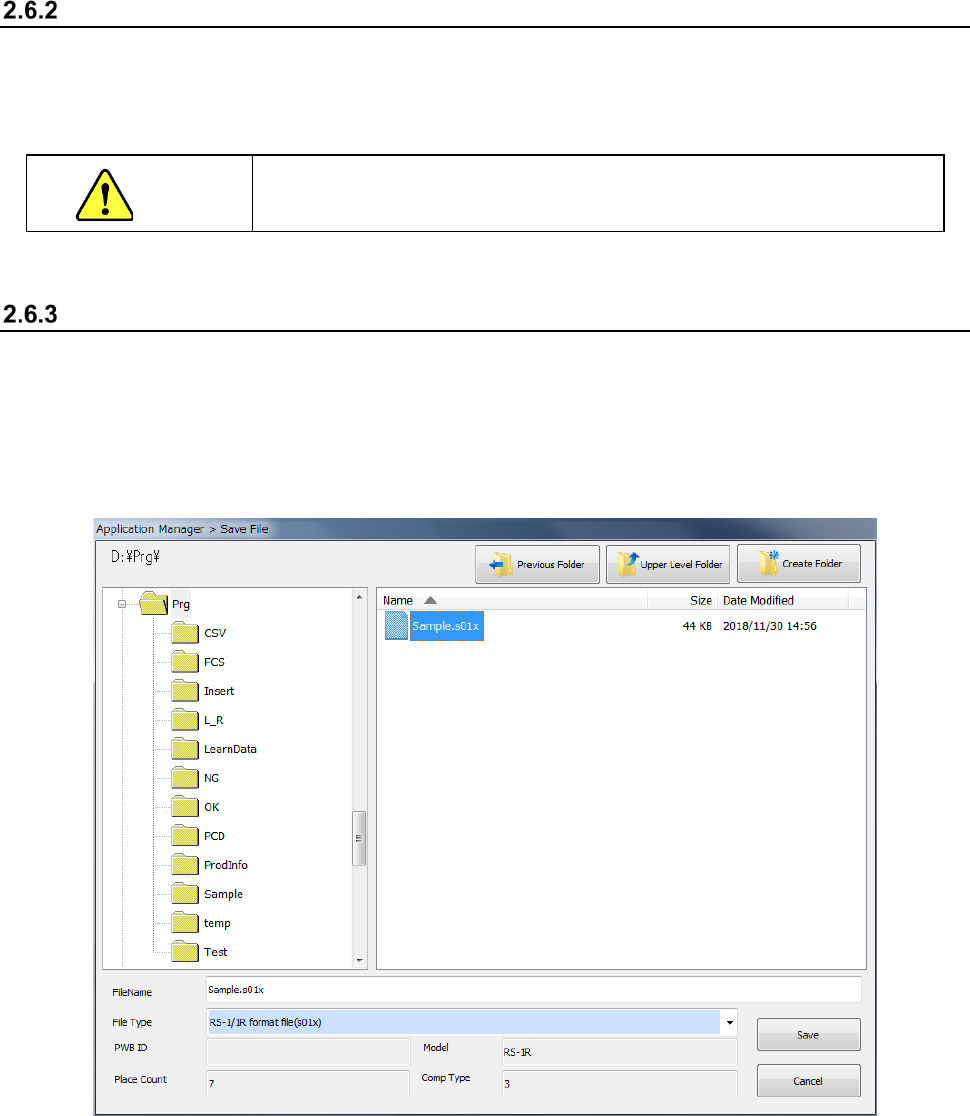
Saving a file with the desired name
Select the [Save as] command to save the edited production program in another folder or with a
new name you specify.
① Click the “File” button, and then the [Save as] command.
② Specify the desired folder and file name on the “Save File” screen, and click the <Save>
button.