RS-1_instruction manual.pdf - 第704页
Part 2 D etaile d Descript ion of E ach Functi on Chapter 7 Operation Option 7- 29 7.5.3 Tracki ng operation When you pres s the < T racking operatio n> butt on, the “ tr acking oper ation sett ing screen ” ap pear…
Part 2 Detailed Description of Each Function Chapter 7 Operation Option
7-28
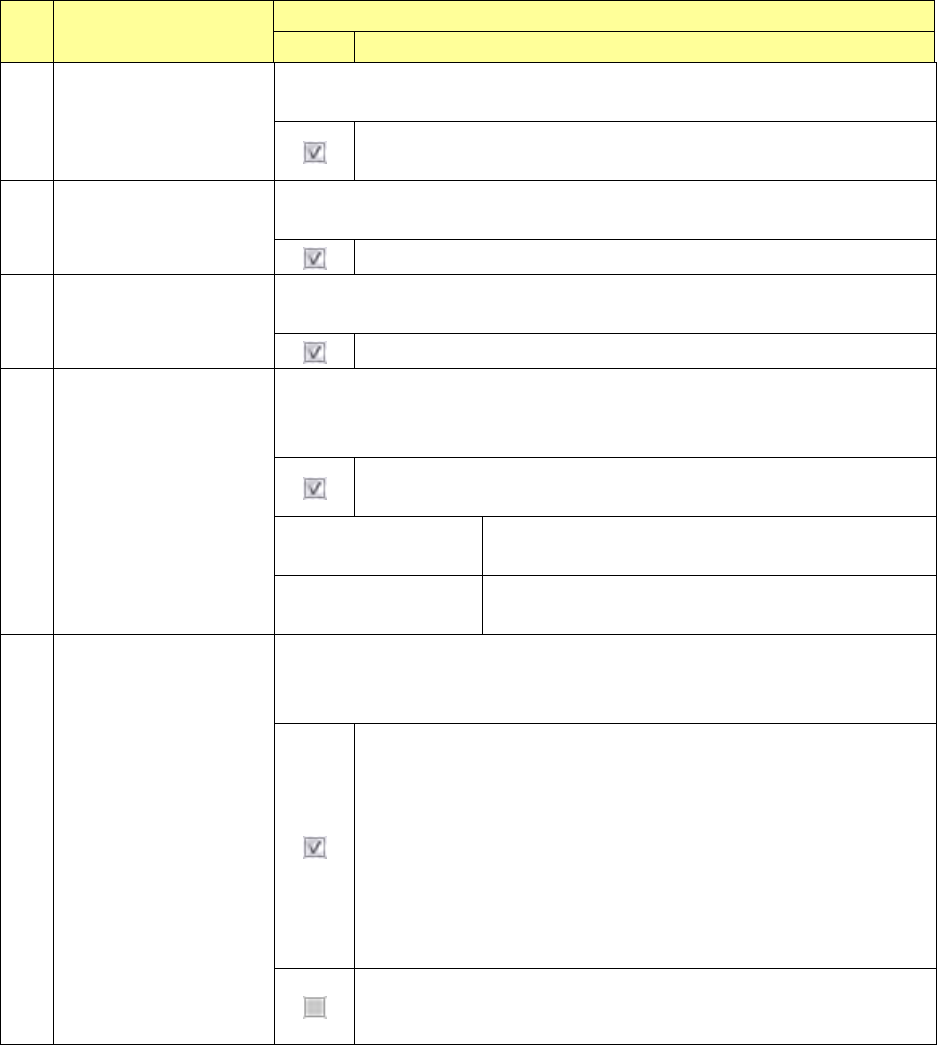
No. Menu item
Description
Status Operation and detailed explanation
4
Perform component
verification when
restarting after
component run-out
Specify the verify inspection at a start after occurrence of no components.
Unless the CVS unit is set, this item cannot be selected.
Verify inspection is executed at a start after occurrence of no
components.
5
Auto verification of
component executed
Specify the execution of verify inspection for automation-oriented components at
a start of production. Unless the CVS unit is set, this item cannot be selected.
Automatic verify inspection is executed at a start of production.
6
Perform component
verification after pick
tracking.
Specify whether to perform verify inspection after pick position tracking. Unless
the CVS unit is set, this item cannot be selected.
Verify inspection is executed after pick position tracking.
7
Execute verify inspection
after splicing.
Specify whether to run a verify check for the first component of a new reel when a
spliced point is detected.
You cannot select this menu item when any CVS device is not set.
Runs a verify check when a spliced point is detected or when the first
component of a new reel is picked up.
Splicing detection
mis-pick count (times)
Set the number of component pick-up mistakes for
detecting a spliced point.
Splicing detection area
(mm)
Set the length of a component reel for detecting the
spliced point.
8 Change angle
Specify the inspection angle for a coplanarity check.
You cannot select this check box when change of the coplanarity inspection
angle is not allowed by the MSP.
The system runs a coplanarity check at the following angles depending
on a component type:
SOP, TSOP or connector: 90 or 270 degrees: the angle is decided
according to which angle is closer to the component placement angle.
TSOP: 0 or 180 degrees: the angle is decided according to which
angle is closer to the component placement angle.
QFP or PQFP (BQFP): 45, 135, 225 or 315 degrees: the angle is
decided according to which angle is the closest to the component
placement angle.
Runs a coplanarity check at the inspection angle specified in
Component data.
Part 2 Detailed Description of Each Function Chapter 7 Operation Option
7-29
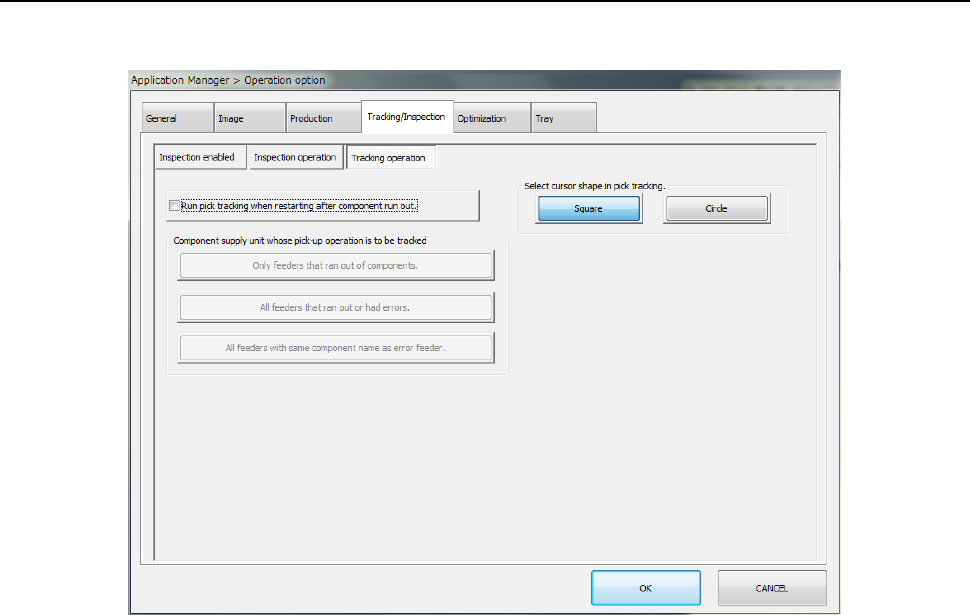
7.5.3 Tracking operation
When you press the <Tracking operation> button, the “tracking operation setting screen” appears.
Part 2 Detailed Description of Each Function Chapter 7 Operation Option
7-30
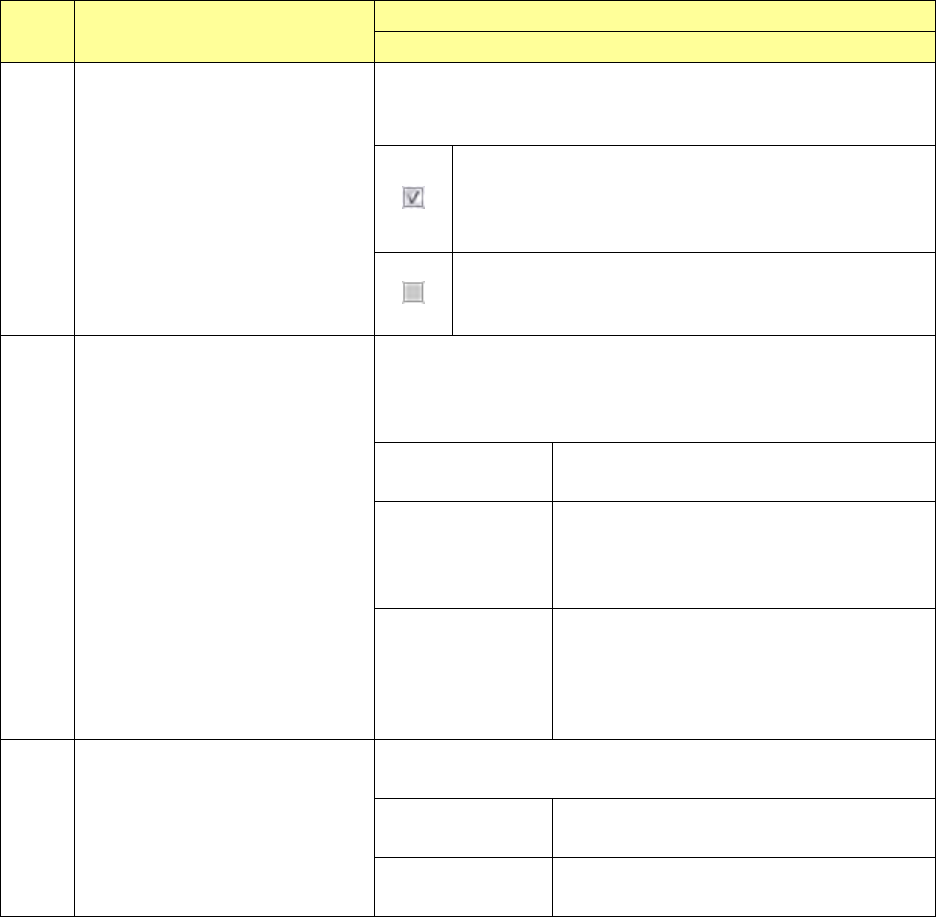
No. Menu item
Description
Operation and detailed explanation
1
Perform pick tracking at a start after
occurrence of no components.
Select Retry in the temporary stop status where “no components”
and
laser retry over occur. Specify whether to execute pick tracking
before retry execution when the <START> switch is pressed.
Pick tracking is executed before retry execution. At this
time, the [Feeder unit to undergo pick tracking] combo box
is
enabled and this item can be selected. The specifying
condition is as follows.
Pick tracking is not executed. At this time, the [Feeder unit
to undergo pick tracking] combo box is disabled and this
item cannot be selected.
2
Feeder unit to undergo pick tracking
Specify the feeder unit to undergo pick tracking at a start after
occurrence of no components. Only when [Pick tracking at a start
after occurrence of components] is checked off, this item can be
selected.
Feeder unit in the
no-component status
Only the feeder unit in the no-
component status
can undergo pick tracking.
Every feeder unit in
which no
components or an
error occurs
Only the feeder unit in which
no components or
an error occurs can undergo pick tracking.
Every feeder unit in
which the
components as the
feeder unit in which
no components occur
Every feeder unit in which the same
components as the feeder unit in which no
components occur are set can undergo pick
tracking.
3
Cursor shape at component pick
tracking
Select the cursor shape at component pick tracking from outer
square/outer circle.
Outer square
The cursor shape at component pick tracking is
set to outer square.
Outer circle
The cursor shape at component pick tracking is
set to outer circle.