RS-1_instruction manual.pdf - 第340页
Part 1 B asic O peration Chapter 4 Cr eating a Produc tion Progra m 4-5 4.2.3 Date and Time Set ting A user whos e user leve l is “ Manager ” or higher c an execut e this function. Select the “ S tartup ” b utton on the …
Part 1 Basic Operation Chapter 4 Creating a Production Program
4-4
4.2.2 Language Selection
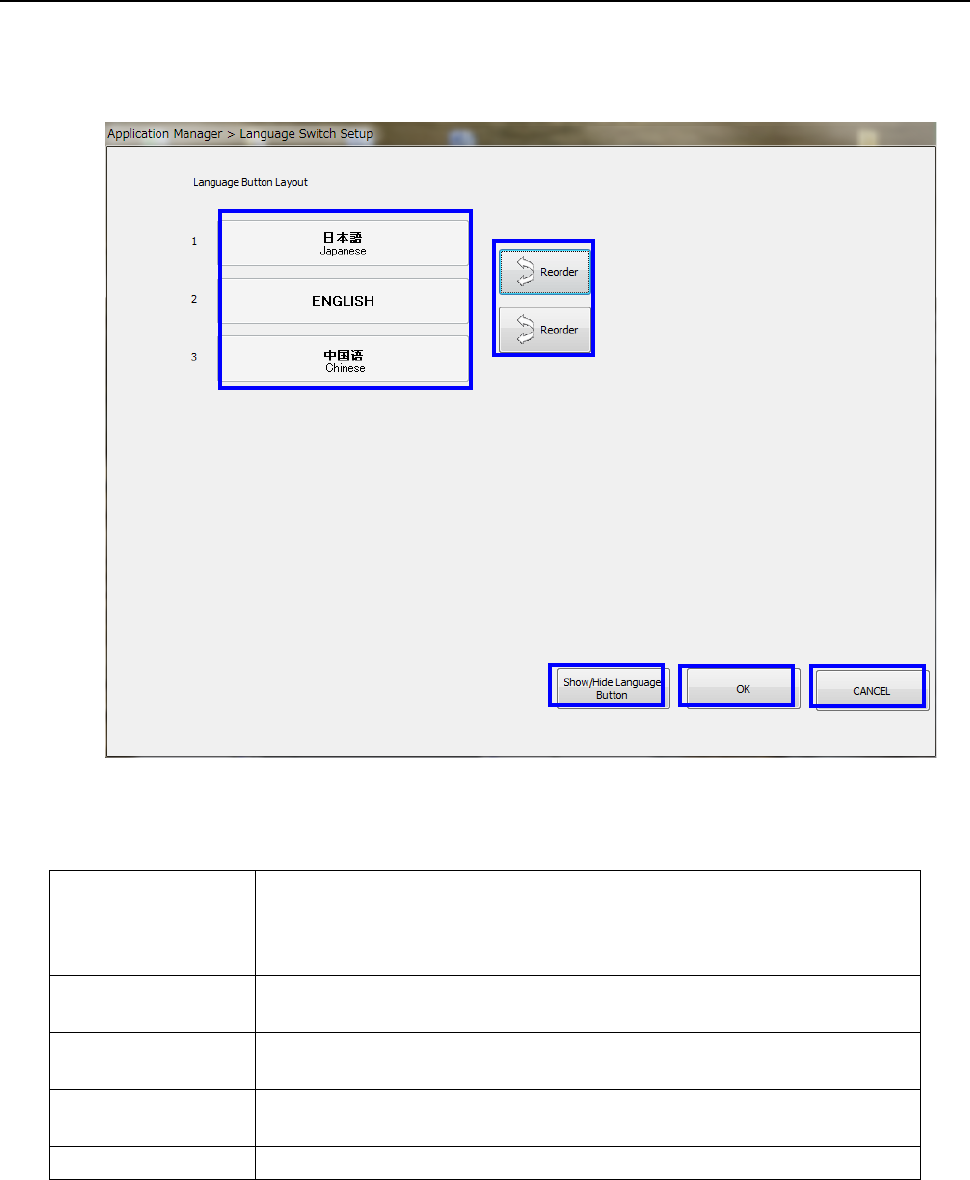
When you select the “Env. Setting” button from the desktop screen, and then the [Language
Selection] command, the following screen appears.
* This function can be executed by a user whose user group is “Manager” or higher.
◆ Function of each button
① Language buttons
When you select the “LANG” button in the Operation area, the switchable
languages appears on the screen.
A selectable language is displayed by the “Language selecting” button of the
function bar. The language in use is displayed in orange.
② Reorder
This button changes the display order of the languages on the men
u invoked with
the “LANG” button.
③
Show/Hide
Language Button
This button allows you to switch the language to be used.
④ OK
This button validates the display order the languages on the menu invoked with
the “LANG” button.
⑤ CANCEL This button cancels your settings.
①
②
④
③
⑤
Part 1 Basic Operation Chapter 4 Creating a Production Program
4-5
4.2.3 Date and Time Setting
A user whose user level is “Manager” or higher can execute this function.
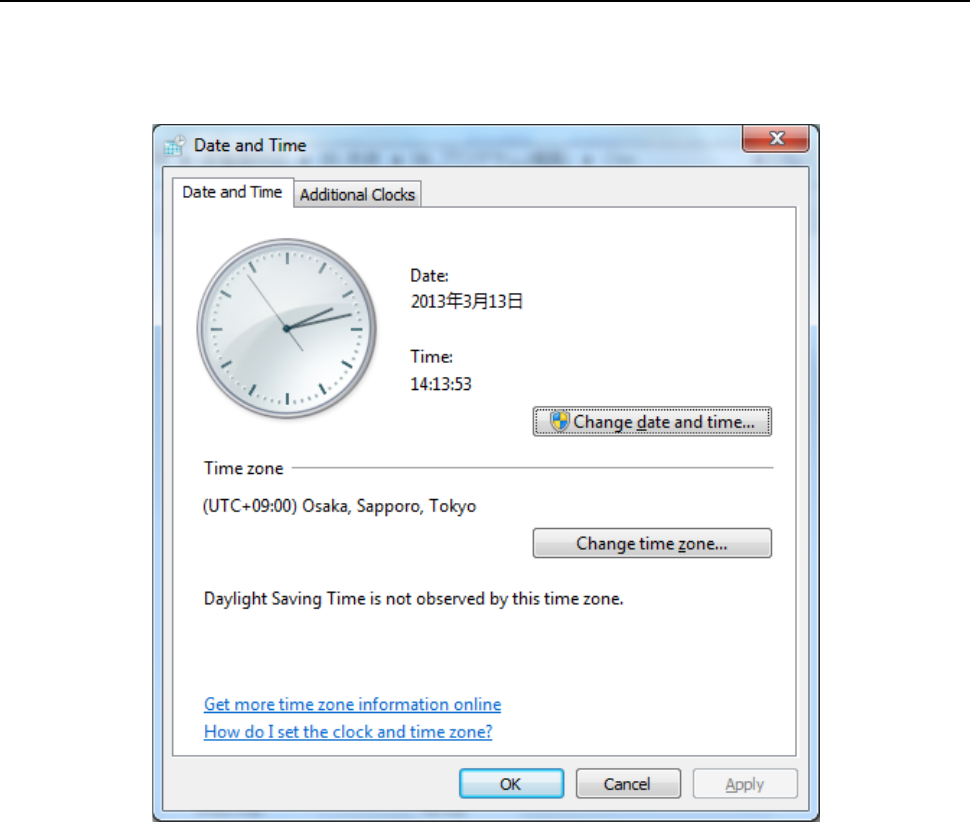
Select the “Startup” button on the desktop screen, and then the [Date and Time Setting] command.
The date and time can be adjusted.
Part 1 Basic Operation Chapter 4 Creating a Production Program
4-6
4.3 Preparation of a Production Program
To produce a PWB, prepare the production program data.
To prepare or edit the production program data, start up the Program Editor.
4.3.1 Starting up the Program Editor
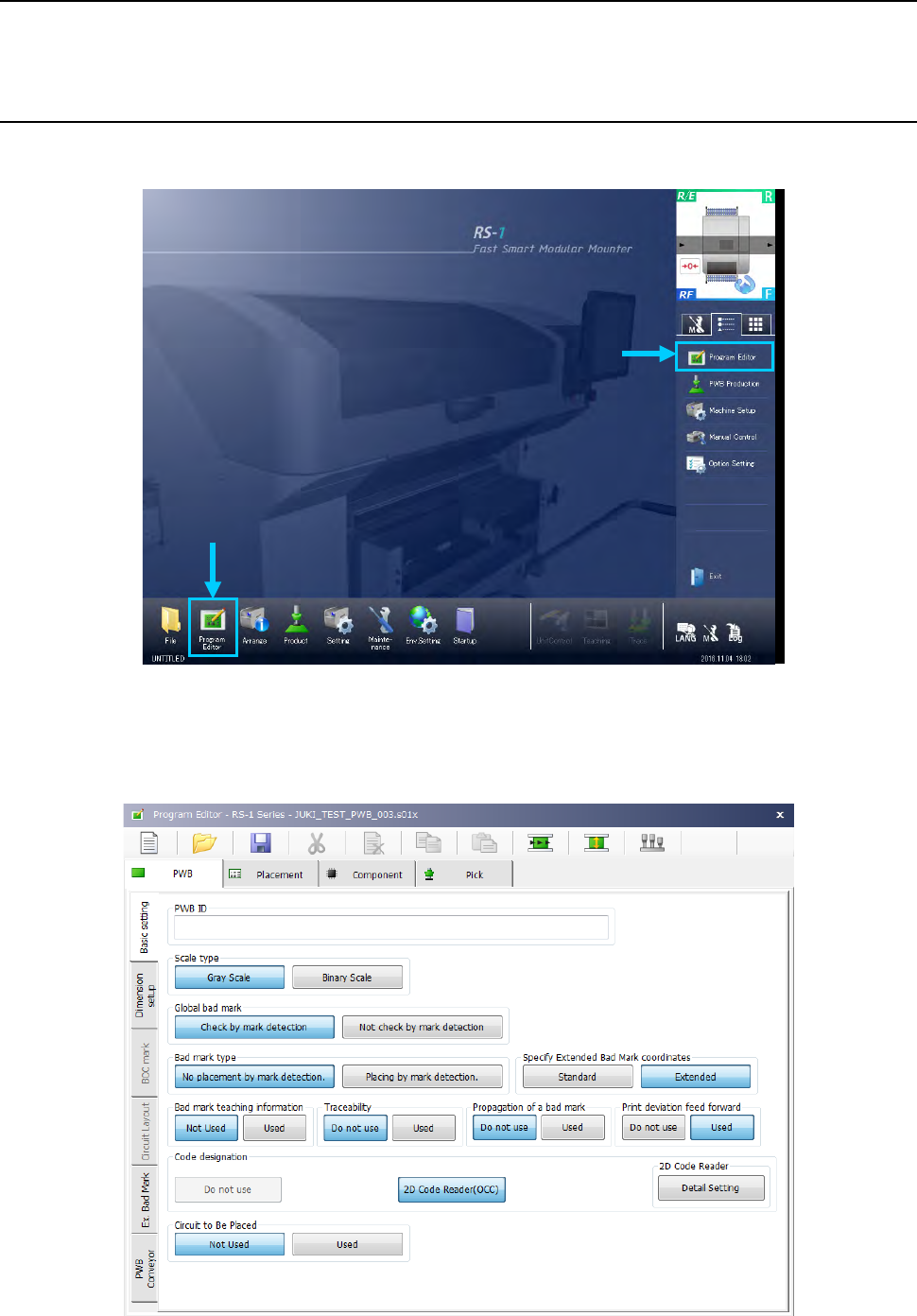
Start up the Program Editor on the following desktop screen.
Select the “Program Editor” button in the Operation area or that in the Information area.
When you start up the Program Editor, the name of the loaded program is displayed on the right
side of the title bar, and the PWB ID is displayed on the status bar.
When you try to create a new production program, “UNTITLED” is displayed as the program name,
and the “PWB ID” field becomes blank.