RS-1_instruction manual.pdf - 第512页
Part 1 B asic O peration Chapter 4 Cr eating a Produc tion Progra m 4- 177 4.5.4 Teaching T eaching is an operat i on for adjusting m ainly a pos ition such as a c omponent pl aceme nt position while mon itoring its im a…
Part 1 Basic Operation Chapter 4 Creating a Production Program
4-176
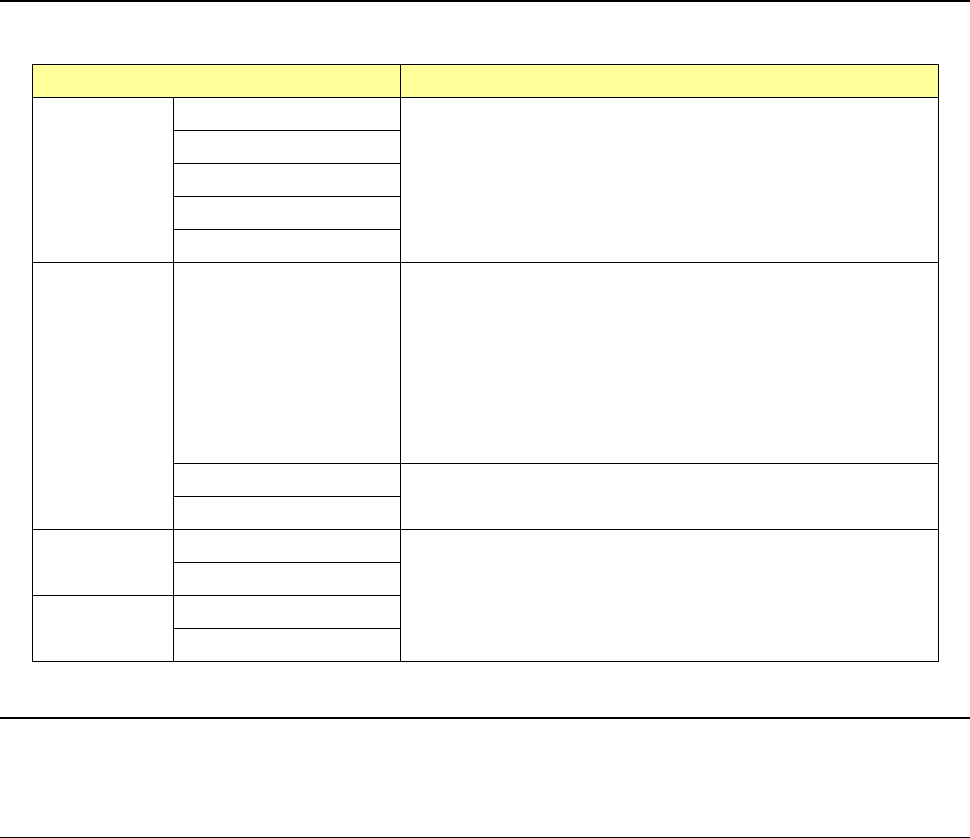
4.5.3.4 Pasting a cell
This command pastes data stored in the memory buffer with the command for “copying a cell.”
Screen Function
PWB data
Basic setting screen
This command cannot be used.
Dimension setup screen
Circuit Layout screen
Ex. Bad Mark screen
PWB Conveyor screen
Placement
data
List screen
This command overwrites the corresponding items of the line on
which the cursor is located with data stored in the memory
buffer with the command for copying a cell.
If the memory buffer is empty, this command cannot be
selected.
The memory buffer holds data until the current screen is
switched to another data edit screen (this command can be
executed continuously).
Data cut from each cell, “X,” “Y” and “Angle,” can be pasted to
the same type of cell only.
Area Mark screen
This command cannot be used.
Area Bad Mark screen
Component
data
List screen
This command cannot be used.
Form screen
Pick data
List screen
Form screen
4.5.3.5 Changing the width of a cell of the “List” screen
When you move an area around the border line between two cells while touching it, the shape of
the cell changes and this allows you to change the width of the cell.
4.5.3.6 Sort function on the “List” screen
When you touch a header (area showing an item name) of a column on the “List” screen twice
quickly, you can use the column as a sort key to sort data.
Every time you touch it twice, the sort operations are switched: cancel of the sort operation ->
sorting in ascending order -> sorting in descending order -> cancel of the sort operation.
- Clearing the sorted state
When you load a file or when you execute the optimization function, the sorted states of all
screens are cleared.
If you change any Pick data on the “Feeder layout” screen, the sorted state of the “List”
screen of the “Pick” data is cleared.
- Edit commands disabled in the sorted state
Some of the Edit commands cannot be used in the sorted state.
The following commands cannot be used: [Cut], [Delete], [Insert line], [Duplicate] and [Mark
copy].
Execute these commands in the unsorted state.
Part 1 Basic Operation Chapter 4 Creating a Production Program
4-177
4.5.4 Teaching
Teaching is an operation for adjusting mainly a position such as a component placement position
while monitoring its image.
As teaching types, coordinate teaching and mark recognition teaching are available.
Use a touch panel to perform a teaching operation.
4.5.4.1 Teaching a coordinate
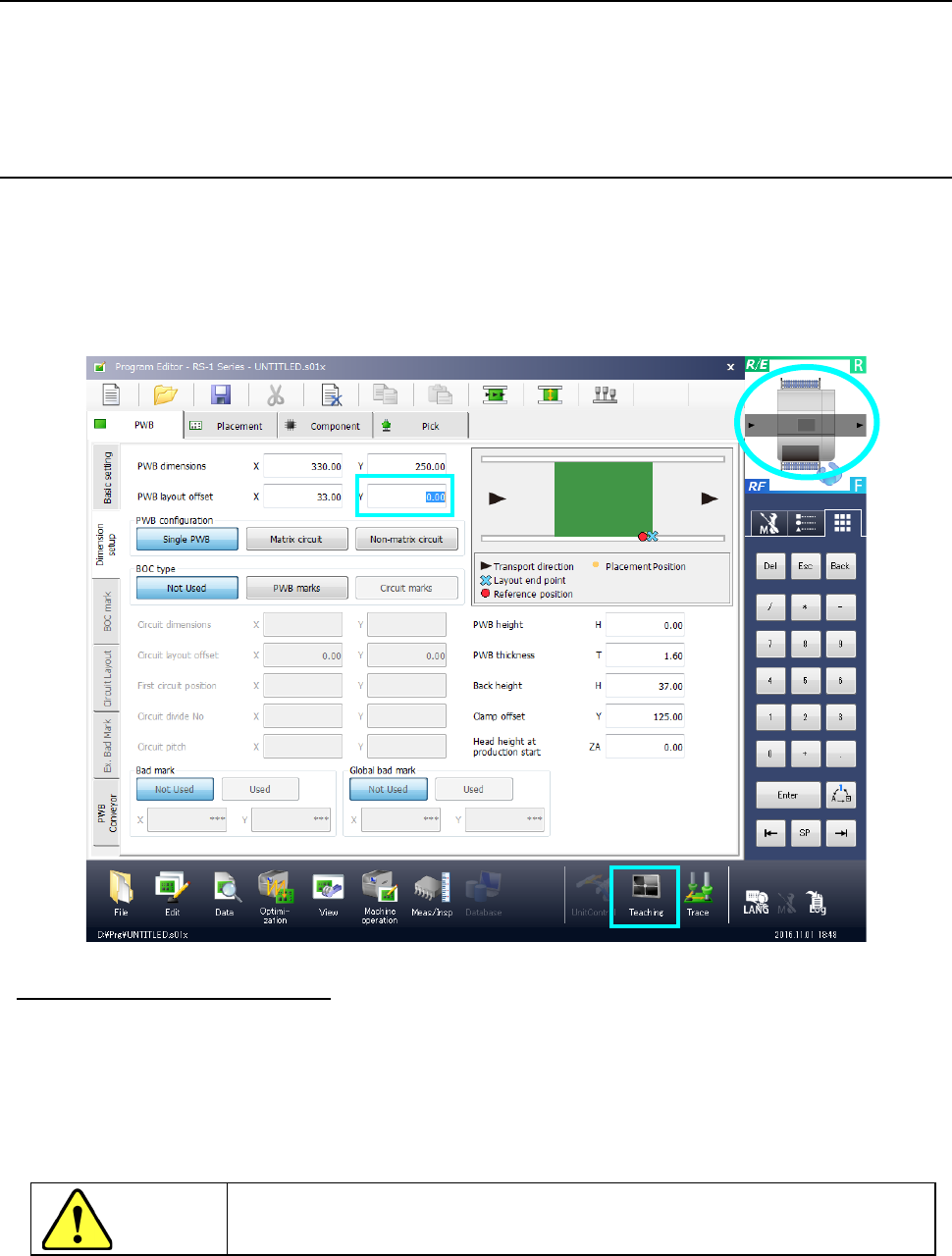
To start teaching a coordinate, move the cursor to the position of data to be taught, and then select
the “Teaching” button displayed the in the Operation area. The system displays the coordinates
teaching screen on which the teaching device required for the selected teaching item is already
selected. When you teach data with a camera, the image shot with the camera appears on the
screen (by superimposing). Even though you press the “Teaching” button on the screen that
does not have any items to be taught, the system does not start teaching.
◆ Origin return of electric feeder
If you teach pick-up coordinates of the electric feeder, the origin return of the electric feeder is
operated when the teaching is started.
When you mount an electric feeder and locks it while the teaching screen is displayed, the origin
return is then started.
Additionally, you cannot press the <OK> button unless the origin return of the electric feeder is
completed.
CAUTION
To avoid a risk of injury, do not put your hands inside the machine or move
your face or head close the machine while the system is teaching data.
Part 1 Basic Operation Chapter 4 Creating a Production Program
4-178
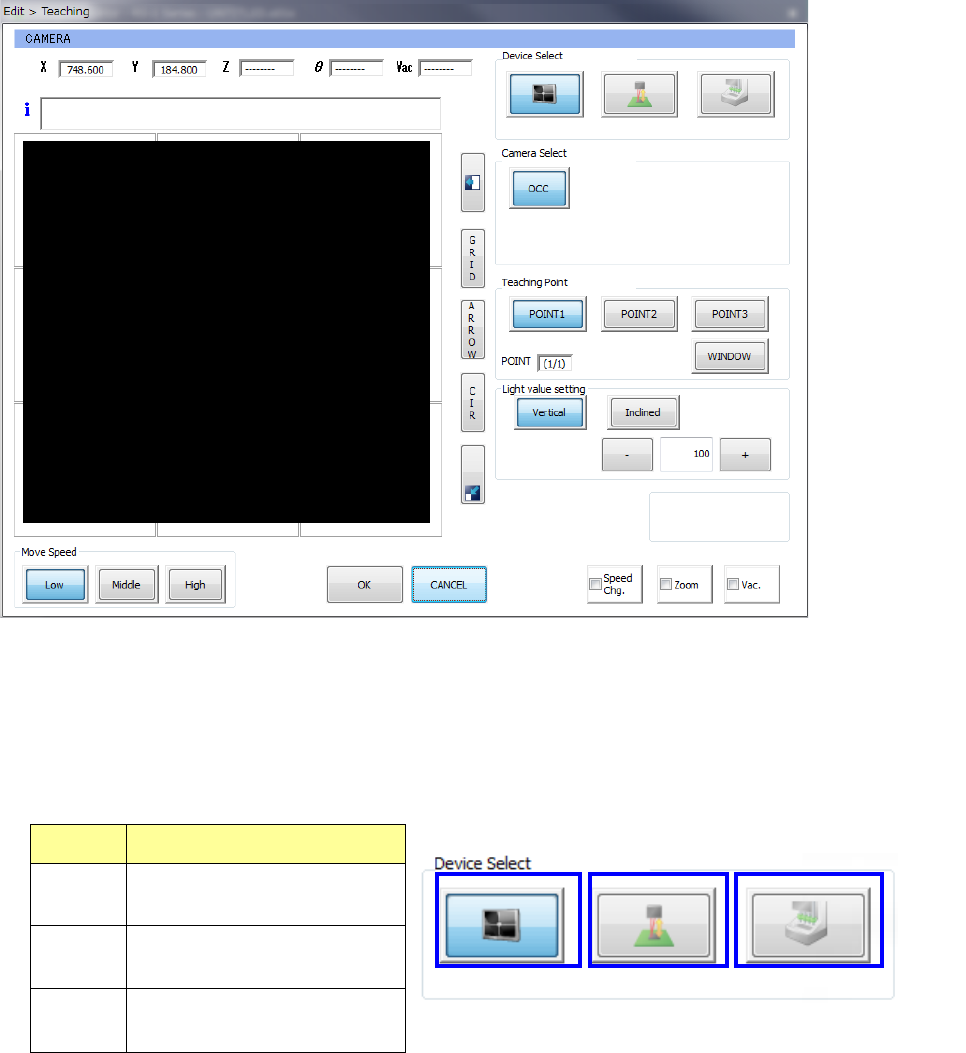
(1) Teaching with a camera
1) Device Select
To switch a device used to perform teaching to another one, press the corresponding device
icon button.
When you specify a teaching device to be used, the specified teaching device moves to the
coordinates displayed at the present.
No. Teaching device
1 Camera
2 HMS
3 Head device
2) Camera Select
Specify a camera to be used for a teaching operation.
③
①
②