RS-1_instruction manual.pdf - 第91页
Part 1 B asic O peration Chapter 1 Overv iew of the Machine 1- 73 Icon Meani ng Icon Meani ng The machine i s not producin g any P W B. The machine is producin g a PW B. The machi ne is not waiting for a cy cle stop. The…
Part 1 Basic Operation Chapter 1 Overview of the Machine
1-72
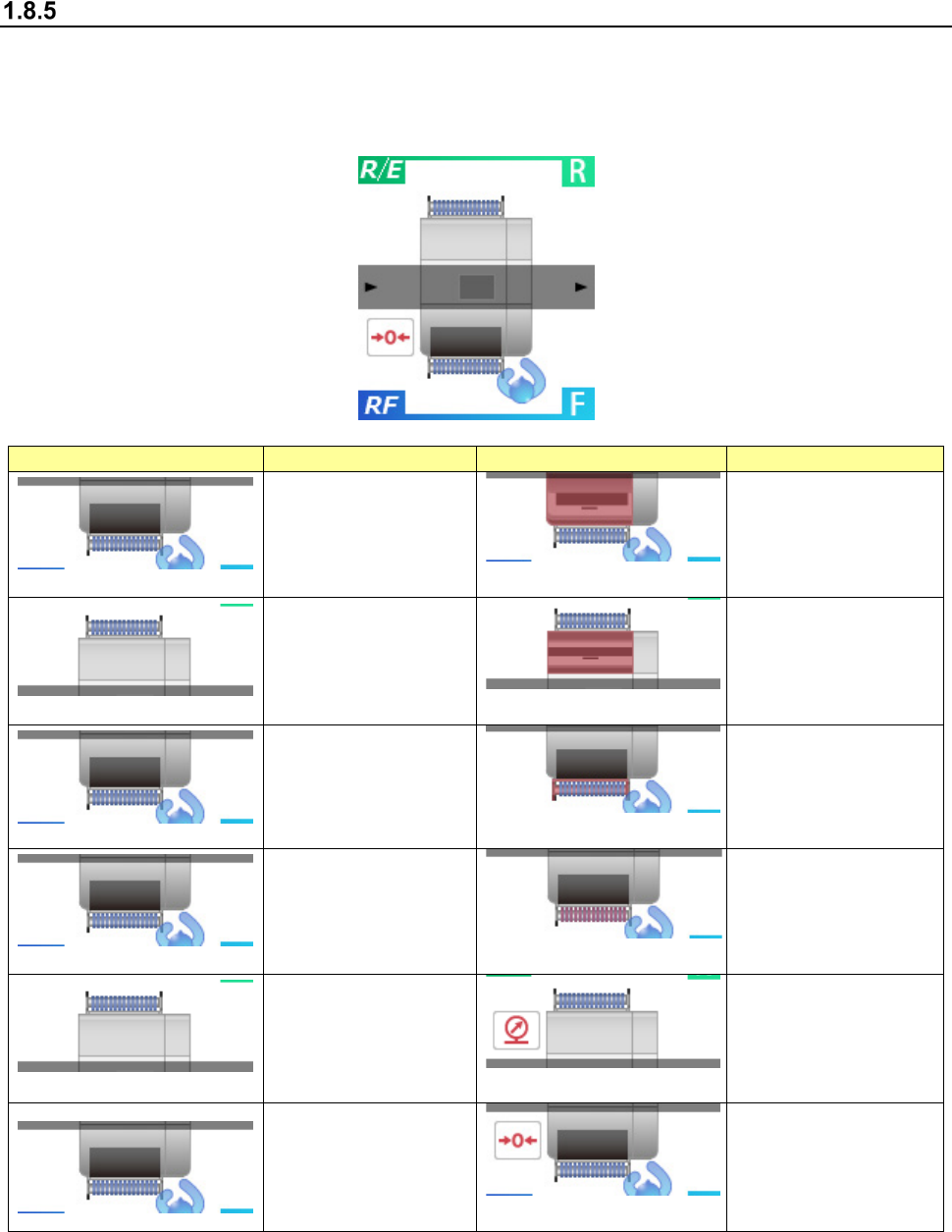
Unit event display screen
The icon of each event displayed on the top of the Information area shows you an event(s) that
occur(s) in real time. You can check the following events: cover open, bank down, feeder
float/feeder insertion error, air down, return to origin not completed/servo off, insertion error sensor
state, PWB production state, cycle stop waiting state and operation panel operating direction.
Icon
Meaning
Icon
Meaning
The cover is closed.
(Front)
The cover is opened.
(Front)
The cover is closed.
(Rear)
The cover is opened.
(Rear)
The bank is moved
up.
The bank is moved
down.
The feeder is in good
order.
The feeder floats or
the feeder has not
been inserted
normally.
The air is in the
normal state.
The air is down.
Return to the origin
has been completed
and the servomotor
is set to ON.
Return to the origin
has not performed
yet or the servomotor
is set to OFF.
Part 1 Basic Operation Chapter 1 Overview of the Machine
1-73
Icon
Meaning
Icon
Meaning
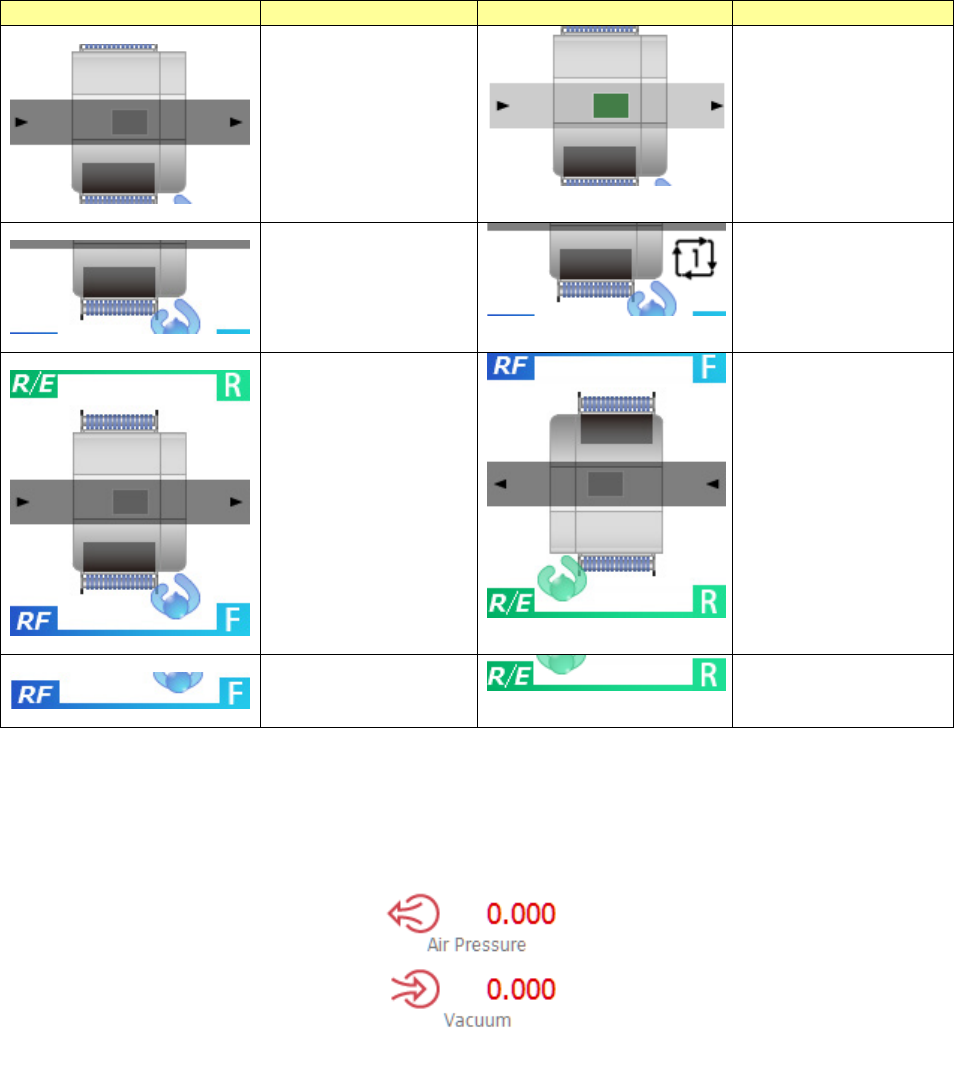
The machine is not
producing any PWB.
The machine is
producing a PWB.
The machine is not
waiting for a cycle
stop.
The machine is
waiting for a cycle
stop.
The operation panel
operating direction
: From the front
The operation panel
operating direction
: From the rear
RF bank is being
used.
RF/EF bank is being
used.
When you touch the event display area, the screen is switched to the air pressure monitor. When
you touch it again, the screen is switched back to the Unit event display screen.
Part 1 Basic Operation Chapter 1 Overview of the Machine
1-74
Operating a File
This section describes how to operate the “File” menu.
This Section describes the items other than “management of control data.”
See Section 13.2 “Managing the Control Data” for “management of control data.”
New
To create a new file, select the “File” button from the main menu, and then the [New] command.
The system initializes production program data.
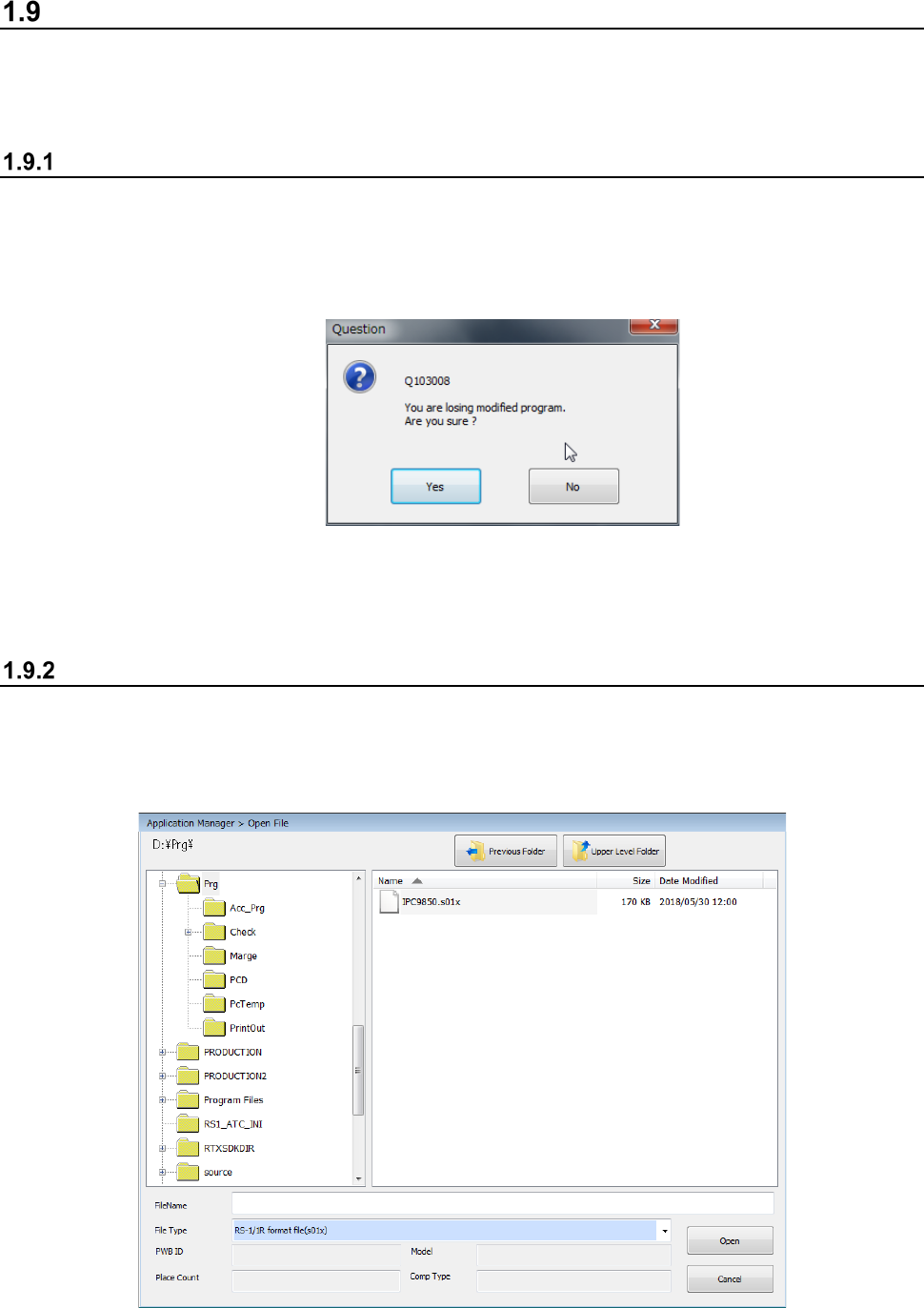
If there is any production program not saved yet, the system displays the inquiry dialog box as
shown below.
When you click the <Yes> button, the system initializes production program data without saving
any file. When you click the <No> button, the system interrupts the current process, and
redisplays the Desktop screen.
Open (Load a file)
This command loads a production program file already created into the system.
<Procedure>
① Select the “File” button from the main menu, and then the [Open] command.
② Select the desired file from the “Open File” dialog box, and click the <Open> button.