RS-1_instruction manual.pdf - 第800页
Part 2 D etaile d Descript ion of E ach Functi on Chapter 9 M anual Control 9- 28 9.5.2 MTS control When you se lect [Feeder ] – [MTS cont rol ] in the me nu, the MTS c ontrol dia log appears. (1) T ray sett i ng Set the…
Part 2 Detailed Description of Each Function Chapter 9 Manual Control
9-27
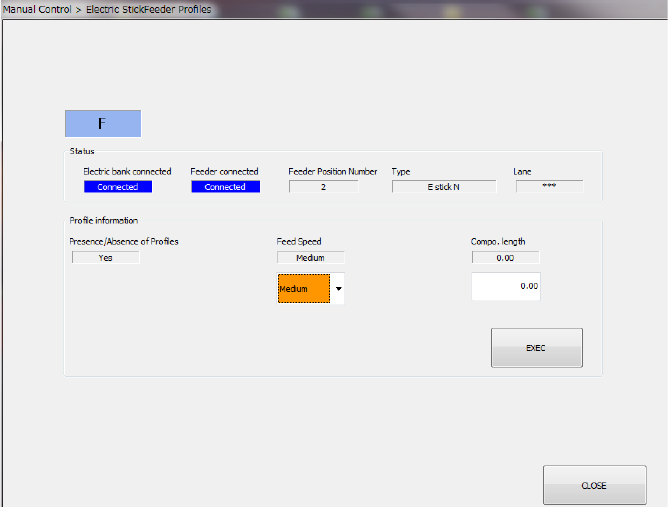
<Electric stick feeder>
Part 2 Detailed Description of Each Function Chapter 9 Manual Control
9-28
9.5.2 MTS control
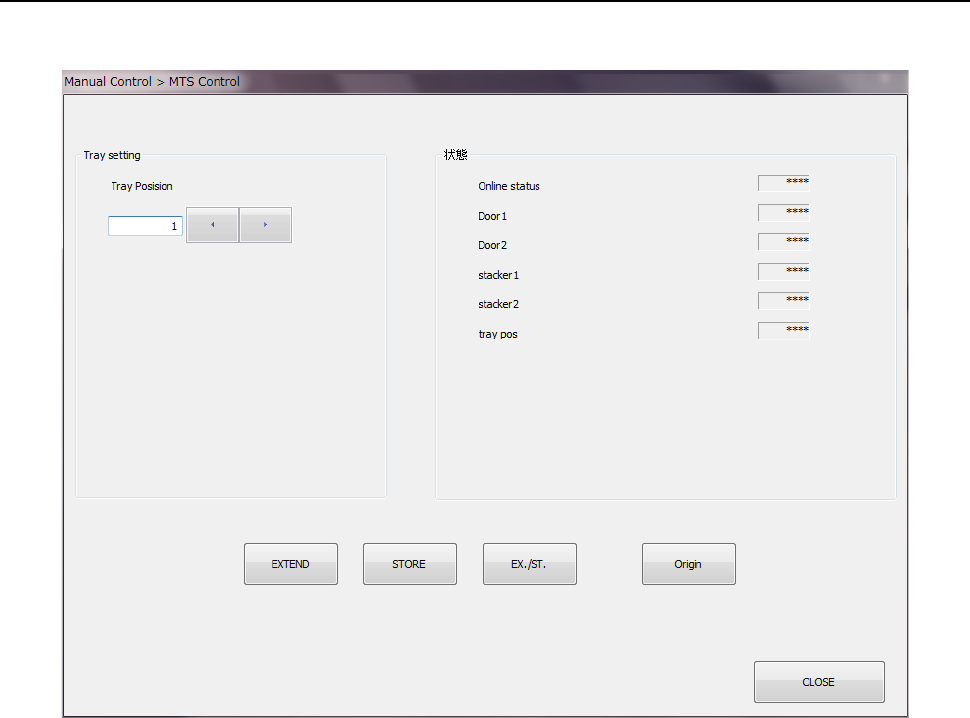
When you select [Feeder] – [MTS control] in the menu, the MTS control dialog appears.
(1) Tray setting
Set the tray position to be controlled. Control the tray position by the <EXTEND> button,
<STORE> button, <EX/ST> button, and <Origin> button.
(2) Status
The unit status is displayed at completion of control.
The online status and door open/close status are displayed continuously.
Part 2 Detailed Description of Each Function Chapter 9 Manual Control
9-29
9.5.3 MTC control
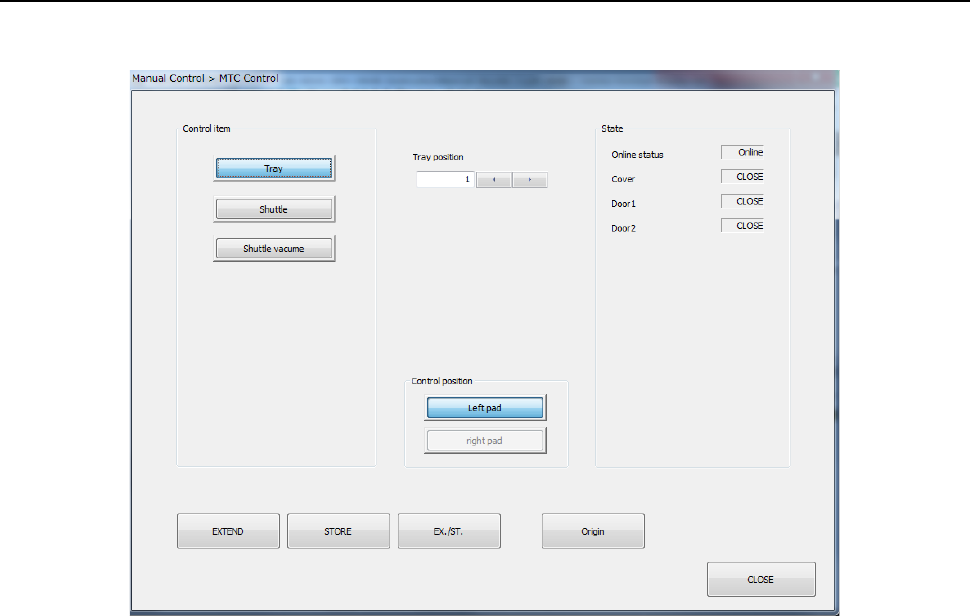
When you select [Feeder] – [MTC control] in the menu, the MTC control dialog appears.
(1) Control item
Select the desired control item with the corresponding push button.
1) Tray
This item controls pulling-out/storage of a tray.
Which operation is to be performed is controlled with selecting the <EXTEND> button,
the <STORE> button, the <EX./ST.> (extend/storage) button or the <Origin> button.
2) Shuttle
This item controls pulling-out/storage of a shuttle
Which operation is to be performed is controlled with selecting the <EXTEND> button,
the <STORE> button, the <EX./ST.> (extend/storage) button or the <Origin> button.
3) Shuttle vacuum
Vacuuming up of a shuttle is controlled with the <ON> button, the <OFF> button, the
<ON/OFF> button or the <Origin> button.
(2) Control position
Select the position to be applied when the selected item is controlled with the corresponding
push button.
You can select the position only when the control item <Shuttle Vacuum> is selected.
(3) State
The state of each unit is displayed here when the corresponding item finishes being
controlled.
The online status is displayed in the “Online status” field, the open/close state of the door is
displayed in the “Door 1” and “Door 2” fields, and the open/close state of the cover is
displayed in the “Cover” field.