semi合集-English.pdf - 第2655页
SEMI E95-1101 © SEMI 2000 , 2001 10 5.4.4 Navigation Panel Layout Mandatory 5.4.4.1 T he figure below shows the navigation panel, with three buttons labeled “(Future)” indicating the positio ns where bu ttons may be plac…
SEMI E95-1101 © SEMI 2000, 20019
5.3.11 Title Panel with Additional Information Recommended
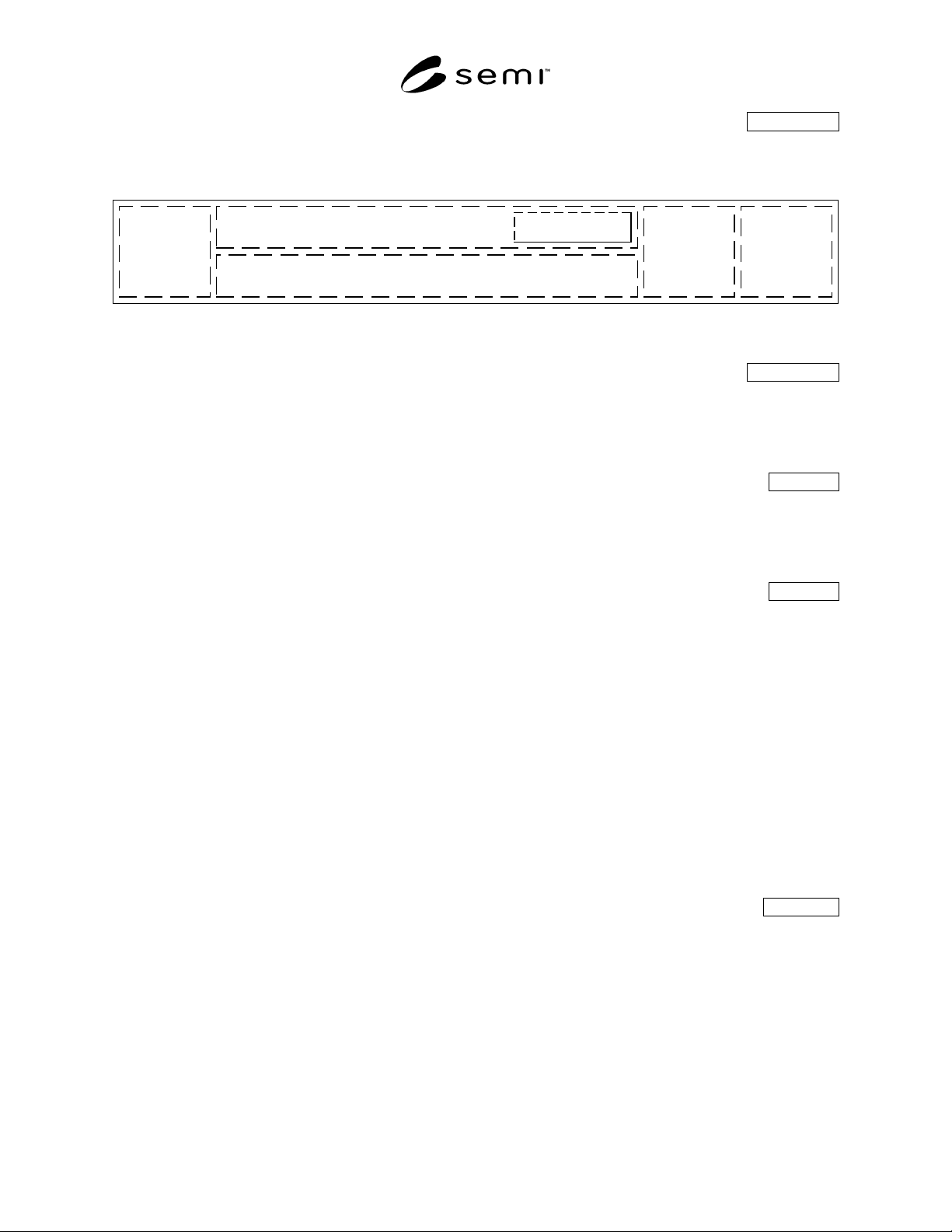
5.3.11.1 Shown below is an example of a layout for the title panel incorporating some recommended display objects
and their relative positions.
Host
Communication
Status
Login Here
Date/Time
Display
Message Area
Current View Name
Corporate
Identifier
Light Tower
Display
Critical
Parameters,
Alarm
Silencing,
etc.
Figure 12
Title Panel with Some Additional Display Objects
5.3.11.2 Title Panel Alarms Button Recommended
5.3.11.2.1 Although not recommended for new designs, the title panel may also contain an Alarms button that
allows the user to respond to cautions and severe alarms. In this case, the Alarms navigation button in the navigation
panel shall be omitted, and any alarms accessed through a title panel Alarms button shall be displayed in a dialog
box, not as an information panel and its command panel.
5.4 Navigation Panel Mandatory
5.4.1 Navigation buttons shall have a text label. In addition, they may also include an icon to graphically represent
their function. When no icon is present, the button label shall be centered on the button. If an icon is present, the
label shall be centered below the icon. Navigation buttons are arranged horizontally along the bottom of the display,
in the navigation panel, which shall always be present.
5.4.2 Required Navigation Functions Mandatory
5.4.2.1 At a minimum, the user shall always be able to immediately access and respond to alarm and caution
notifications, even when a dialog box is displayed on the current view. Dialog boxes shall not obscure the navigation
panel. Additionally, the user shall always be able to immediately access other parts of the interface if such access is
required to ensure the safe operation of the equipment. Only when prohibited by the operating system or other
implementation limitations such that a displayed dialog box cannot be maintained during, or redisplayed after
navigation, it is allowed that such access may be accomplished by displaying another dialog box that completely
covers the originally displayed dialog box. When the overlaying dialog box is dismissed, the underlying dialog box
is redisplayed, in the same state it was in prior to the invocation of the overlying dialog box (i.e., given the stated
prohibition or limitations, it is not mandatory that access be provided through navigation using the navigation
panel). Immediate access shall mean that the user shall not have to dismiss or otherwise interact with any displayed
dialog box in order to perform the required access. When the user navigates back or otherwise returns from the
required access, the last selected view shall be displayed, along with any dialog box that was displayed, in the same
state it was in. If no dialog box was displayed, the last selected view shall be displayed.
5.4.2.2 An allowed exception is a login and/or logout dialog box or screen if an implementation requires modal
operation while logging in or out.
5.4.3 Conditional Navigation Functions Conditional
5.4.3.1 Except when absolutely prevented by the operating system or implementation limitations, the navigation
panel shall always be available for user selection, even when a dialog box is displayed on the current view. This
makes it possible for the user to directly and immediately access any functional area from anywhere within the user
interface. Immediate access shall mean that the user shall not have to dismiss or otherwise interact with any
displayed dialog box in order to perform the required access. When the user navigates back to a functional area, the
last selected view is displayed, along with any dialog box that was displayed, in the same state it was in.
5.4.3.2 An allowed exception is a login and/or logout dialog box or screen if an implementation requires modal
operation while logging in or out.
SEMI E95-1101 © SEMI 2000, 2001 10
5.4.4 Navigation Panel Layout Mandatory
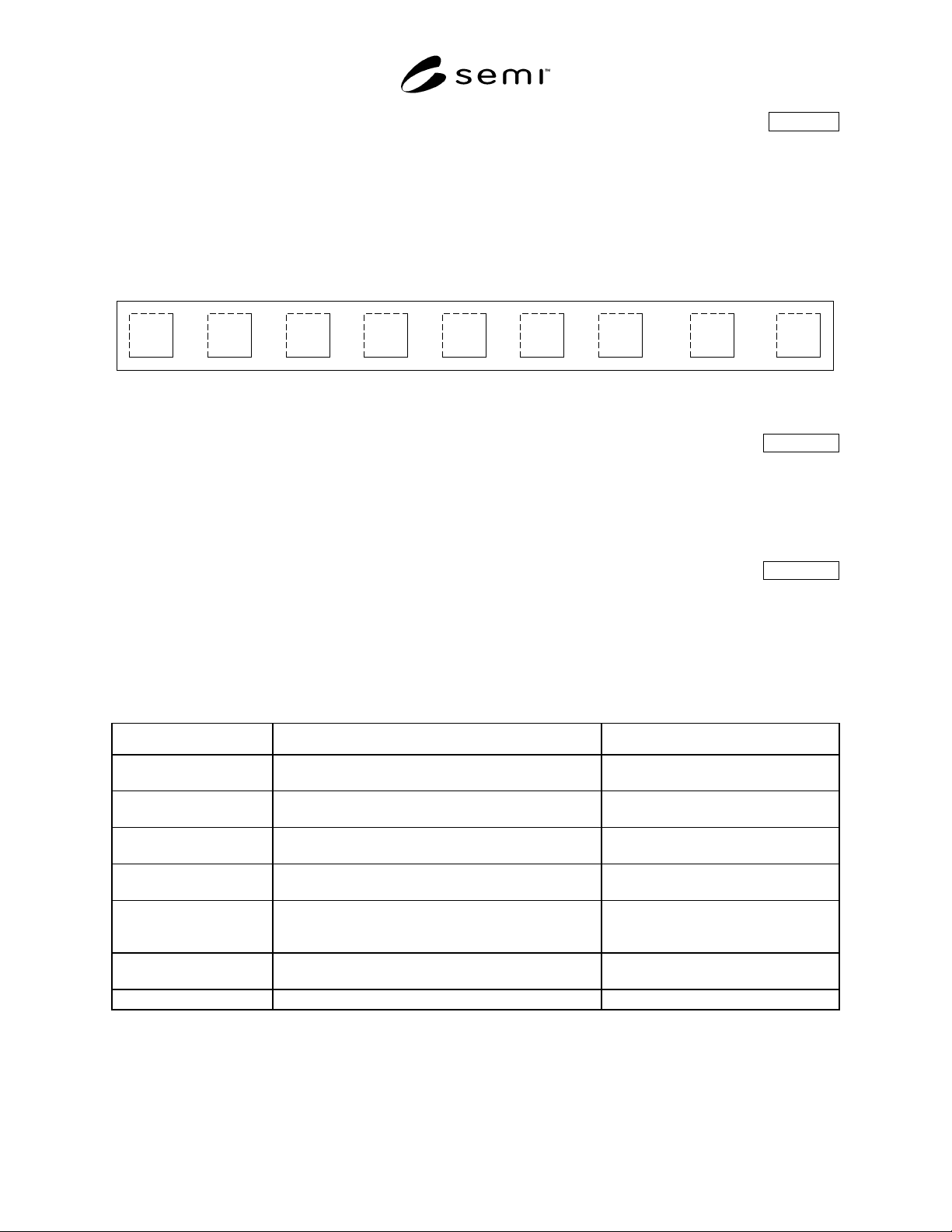
5.4.4.1 The figure below shows the navigation panel, with three buttons labeled “(Future)” indicating the positions
where buttons may be placed if required by the specific implementation of the interface, or as a result of
modifications or enhancements in future releases of the software. It is recommended that the navigation panel
contain no more than ten buttons.
5.4.4.2 The navigation buttons shall be sequenced from left to right in descending order of expected frequency of
use. The most frequently selected navigation button shall be left-most within the navigation panel; and the least
frequently selected button shall be right-most.
Jobs System Recipes Setup (Future) (Future) (Future) Alarms Help
Figure 13
Navigation Panel
5.4.5 Navigation Panel Alarm and Help Buttons Conditional
5.4.5.1 The two exceptions to the above ordering are the Alarms and Help navigation buttons, which, when they are
supported in an implementation, shall be the next to right-most and right-most buttons, respectively. This placement
ensures that the position of these buttons shall remain unchanged, even if subsequent interface modifications or
enhancements require additional buttons. The Alarm button shall be placed so that the spacing between it and
adjacent buttons is larger than the spacing between other buttons, to allow its selection quickly, and without error.
5.4.6 Navigation Button Labels Conditional
5.4.6.1 For each functional area, there is a corresponding navigation button identified by a text label (mandatory)
and icon (recommended) identifying the functionality and information provided. The table below shows text labels
(conditional) for the navigation buttons, a description of each functional area, and some recommended alternative
labels.
Table 1 Functional Areas
Navigation Button Label Description Alternate Labels
Jobs Operations related to product processing, including
any pre- and post-production equipment setup
Lot Operations, Operation,
Operations, Processing, Main, Run
System Equipment status, manual move, maintenance, service,
calibration, & other engineering-level functions
Overview, Service, Status, System
Status, Maintenance
Recipes Recipe management, including creation, editing,
storing, etc.
None
Datalog Data histories, event logs, SPC functions
(If supported)
History, Analysis, Logs, Data
Setup User account administration, host communications
control, user preferences, parameters, hardware
configuration/options, light tower programming, etc.
Configuration, Options
Alarms Alarm and caution summary to acknowledge and clear
posted alarms, current event log
None (see Section 5.4.5)
Help Help files on operations, procedures, and the interface None (see Section 5.4.5)
5.4.6.2 The top to bottom ordering of the table reflects the left to right ordering of navigation buttons. Also allowed,
but not recommended for new designs, is a left to right ordering of: System, Jobs, Equipment Setup, Recipes,
History, Maintenance, and Configuration. The alternative labels specified in the table may be applied to this
SEMI E95-1101 © SEMI 2000, 200111
ordering also. Additional buttons, if required for a particular implementation, shall be added between the Setup and
Alarm button positions.
5.4.7 Navigation Panel Saliences Conditional
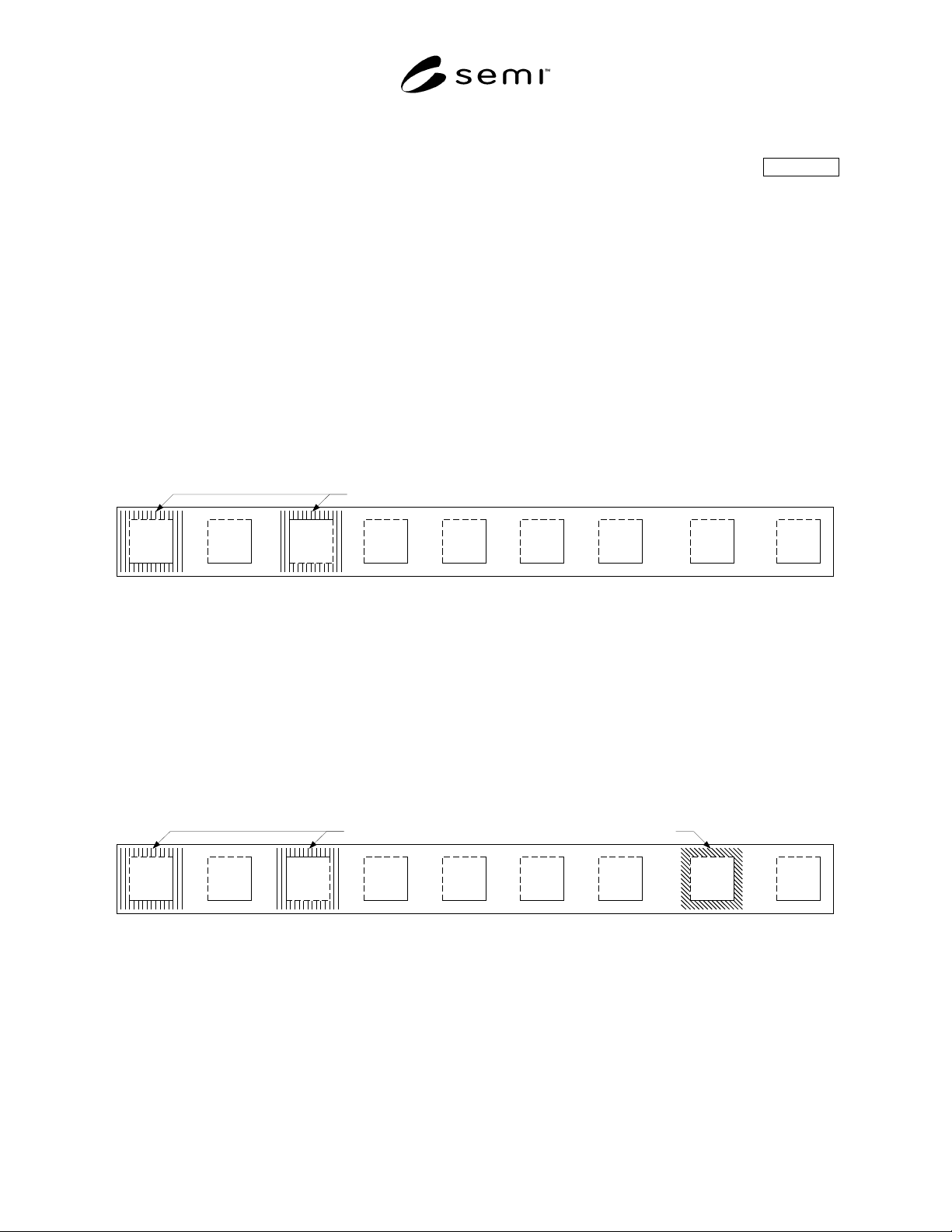
5.4.7.1 Only one navigation button at a time shall display a pressed appearance. Additionally, navigation buttons
shall display colored salience coding for a number of purposes: 1, to indicate the user is viewing a functional area
(medium blue salience); 2, to indicate an unfinished task (typically an open dialog box) in a functional area not
currently displayed (medium blue salience); and 3, to inform the user that there are new or unacknowledged cautions
or alarms (saturated yellow or saturated red salience, respectively). The caution and alarm saliences are displayed on
the Alarms navigation button only. As an example, if the user has opened a dialog box in the Jobs functional area,
and then selects the Recipes navigation button, the Recipes button shall display a pressed (down) appearance and a
medium blue salience, and the Jobs button shall display an unpressed (up) appearance and a medium blue salience
(Figure 14). This reminds the user that there is an open dialog box in the Jobs functional area. More than one
navigation button may display the unfinished task salience.
5.4.7.2 The Jobs button may also display a medium green salience (not shown) to notify the user that the equipment
is “Ready to Load,” “Ready to Unload,” “Ready to Run,” or is in a similar state such that the user’s attention is
requested in the Jobs functional area. This is useful when the user has navigated to another functional area of the
interface. If there is an unfinished task, its medium blue salience shall remain displayed, even if the user’s attention
is requested.
Jobs System Setup (Future) (Future) (Future) Alarms Help
Medium Blue Salience
Recipes
Figure 14
Navigation Button Saliences
5.4.7.3 The Alarm navigation button, in addition to the medium blue salience, displays a saturated (bright) yellow
salience when there are new or unacknowledged cautions, or displays a saturated red salience when there are new or
unacknowledged alarms. Only the severest level is displayed. That is, when there are both cautions and alarms, the
red alarm salience shall be displayed. When there are no alarms and only cautions, the caution salience shall be
displayed. The figures below show the same situation as Figure 14, with Figure 15 showing a caution salience, and
Figure 16 showing an alarm salience. If there are no cautions or alarms, the Alarm button displays a medium blue
salience if the user is viewing the Alarms functional area, or if there is an unfinished task and another functional area
is being viewed. If a caution or alarm occurs, the medium blue salience is replaced with the appropriate salience, and
is only re-displayed when all cautions and alarms have been acknowledged or cleared.
Jobs System Recipes Setup (Future) (Future) (Future) Alarms Help
Bright Yellow SalienceMedium Blue Salience
Figure 15
Warning Salience